Are your users struggling with failed scans and registration errors during Salesforce multi-factor authentication (MFA) rollouts? Mishandled enrollment flows delay deployments, overload help desks, and expose accounts to credential theft through phishing. Learn how to configure QR-based authentication, harden your administrative policies, and troubleshoot common scanning hurdles across your organization.
How QR Code Registration Works in Salesforce MFA
Salesforce supports four primary MFA verification methods: built-in authenticators such as Touch ID and Windows Hello, physical security keys such as FIDO2 hardware tokens, the proprietary Salesforce Authenticator app, and third-party authenticator apps. When deploying third-party tools like Google Authenticator or Authy, Salesforce relies on Time-based One-Time Password (TOTP) protocols initiated through a QR code.
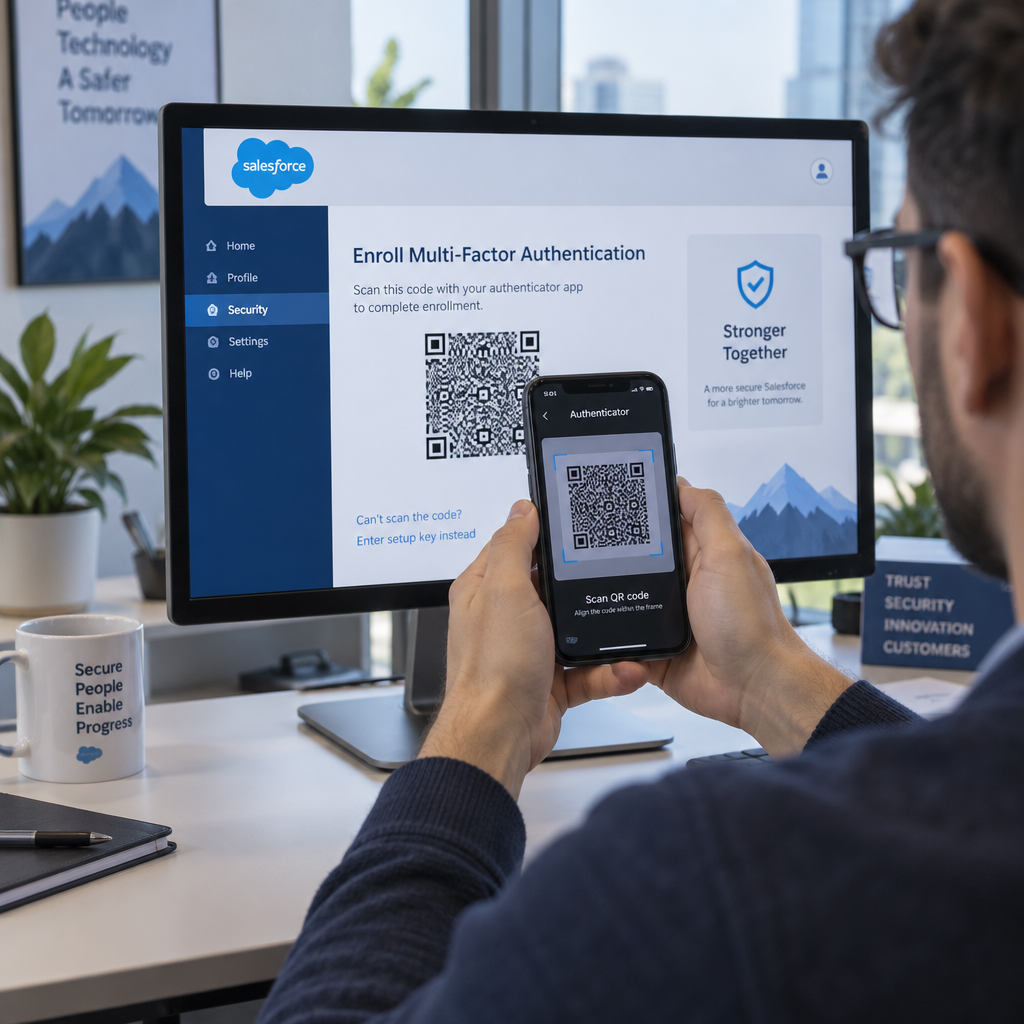
The QR code acts as an automated data bridge between the Salesforce platform and the user’s mobile device. During the setup process, Salesforce embeds a shared secret key and account identification string inside a high-density matrix barcode. Scanning that code imports the secret key directly into the authenticator app, which then computes a matching six-digit verification code every 30 seconds.
Verstehen wie QR-Codes die Multi-Faktor-Authentifizierung vereinfachen helps administrators plan seamless rollouts. Users register their authenticator app by following this core path:
- Access personal settings by navigating to Settings > Advanced User Details within Salesforce.
- Locate the App Registration: One-Time Password Authenticator line and click Verbinde.
- Complete the automated identity verification prompt sent via email or SMS.
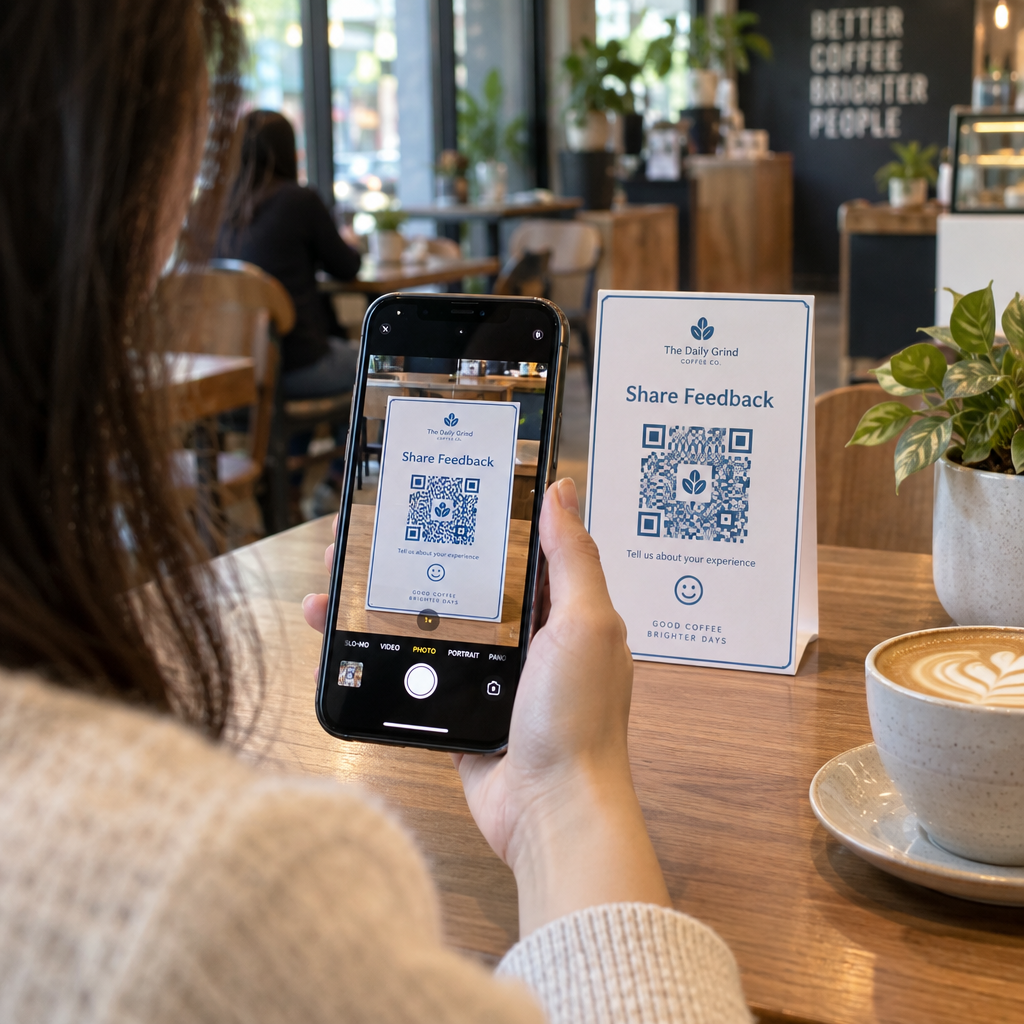
- Scan the displayed QR code using the authenticator app on the mobile device.
- Enter the six-digit TOTP code generated by the app into the Salesforce prompt and confirm the connection.
If a mobile camera cannot read the screen, the user can click I Can’t Scan the QR Code to expose the raw alphanumeric secret key for manual entry. Admins and users must treat this key with strict confidentiality, as anyone possessing the string can mirror the generated codes.
Risks Threatening QR Code Authenticator Enrollment
While QR codes streamline onboarding, the enrollment phase introduces distinct attack vectors. A standard TOTP QR code contains an unencrypted, non-expiring shared secret. If an attacker captures the barcode through an unauthorized screenshot or shoulder surfing, they gain persistent access to secondary verification codes.
Organizations must guard against several prominent enrollment threats:
- QR Phishing (Quishing): Malicious actors direct employees to counterfeit login portals displaying fake registration codes that link the attacker’s device instead of the employee’s phone.
- Man-in-the-Middle Interception: Adversaries proxying web traffic can capture the displayed QR payload during browser sessions before the legitimate user completes pairing.
- Device Compromise: Mobile devices lacking screen locks or basic security configurations risk exposing installed authenticator vaults to malicious local applications.
- Unmonitored Session Displays: Leaving temporary enrollment screens unattended allows unauthorized personnel to photograph the secret key directly from the monitor.
Adopting advanced strategies such as verschlüsselten QR-Codes für Authentifizierungsplattformen illustrates the industry shift toward protecting sensitive keys during transit. Organizations should pair QR enrollment with phishing-resistant policies to reduce exposure.
Administrative Strategies for Hardening Salesforce MFA
Securing an enterprise Salesforce instance requires layered administrative controls beyond simply switching MFA on. Salesforce allows administrators to require MFA org-wide by navigating to Setup > Identity Verification and checking Require multi-factor authentication (MFA) for all direct UI logins to your Salesforce org. However, staged deployments often benefit from applying the Multi-Factor Authentication for User Interface Logins permission set across specific user groups over time.
Apply these essential policies to protect user accounts:
- Enforce phishing-resistant MFA for privileged accounts: Salesforce requires users with administrative access – such as the System Administrator profile or Modify All Data permissions – to use passkeys or physical FIDO2 security keys rather than TOTP apps.
- Mandate mobile device protection: Require employees to secure their smartphones with biometric locks or PIN protection to prevent unauthorized use of authenticator applications.
- Restrict trusted network boundaries: Configure trusted IP ranges and login IP restrictions to challenge or block login attempts originating outside approved company networks.
- Audit login and identity logs: Use Salesforce Login History and Shield Event Monitoring to track unusual access locations, anomalous devices, or unexpected verification attempts.
- Migrate integration credentials: Move legacy automated processes using UI-based login flows over to JWT bearer tokens or client-credentials flows so integration accounts avoid unnecessary UI MFA challenges.
For thorough pre-deployment validation, review Best Practices für das Testen der QR-Code-Authentifizierung in a dedicated sandbox before activating policies in production.
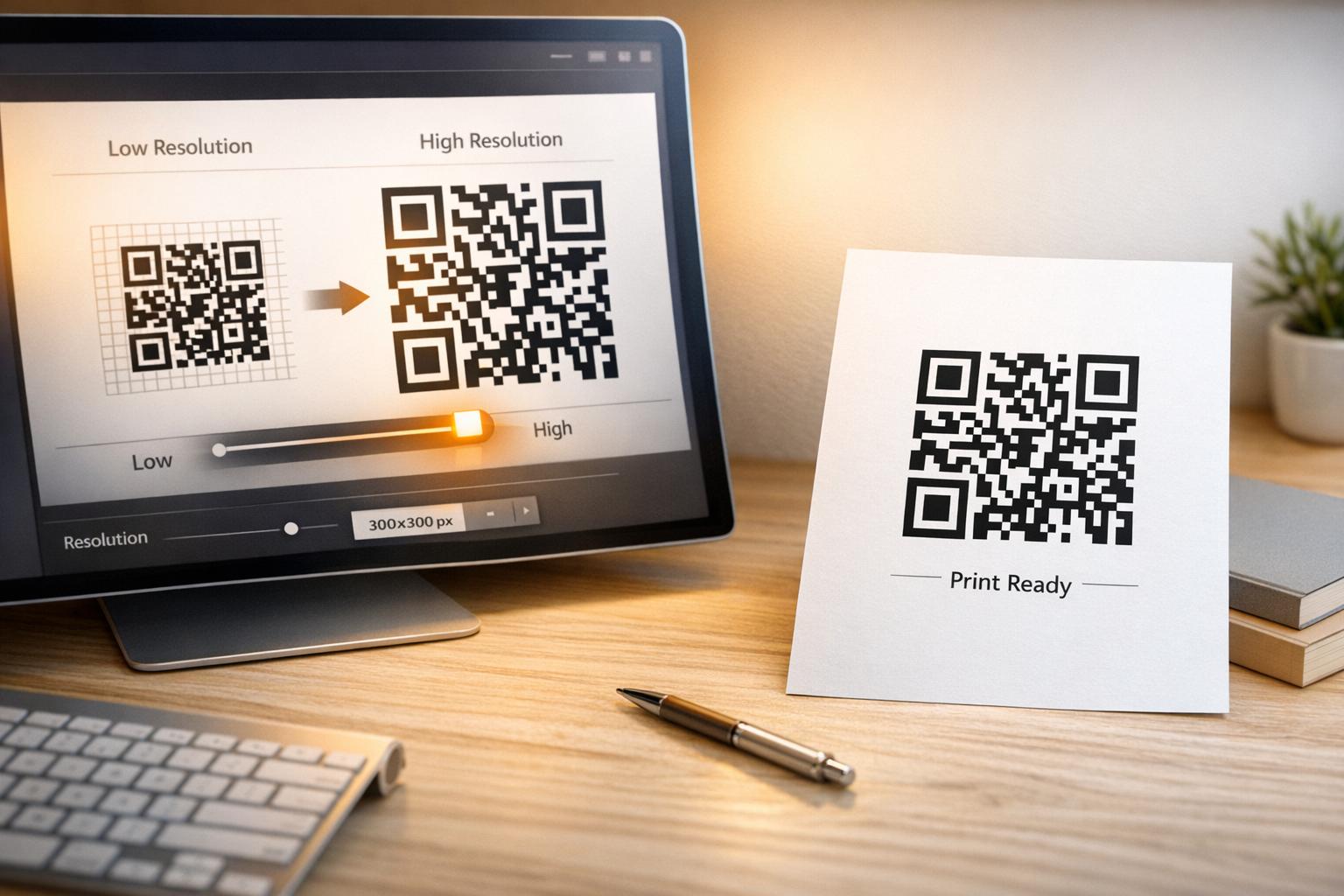
Test and Inspect Your QR Codes Online Need to check barcode resolution or verify the payload of your authentication assets before rollout? Use the kostenlosen QR-Code-Scanner to test and decode QR codes instantly from any desktop or mobile browser.
Troubleshooting Readability and Scanning Failures
Scanning failures create immediate friction during onboarding, generating urgent tickets for help desk teams. When a mobile device fails to register a Salesforce QR code, the cause usually traces back to display issues or device configuration mismatches.
Address these common technical factors to resolve scanning errors:
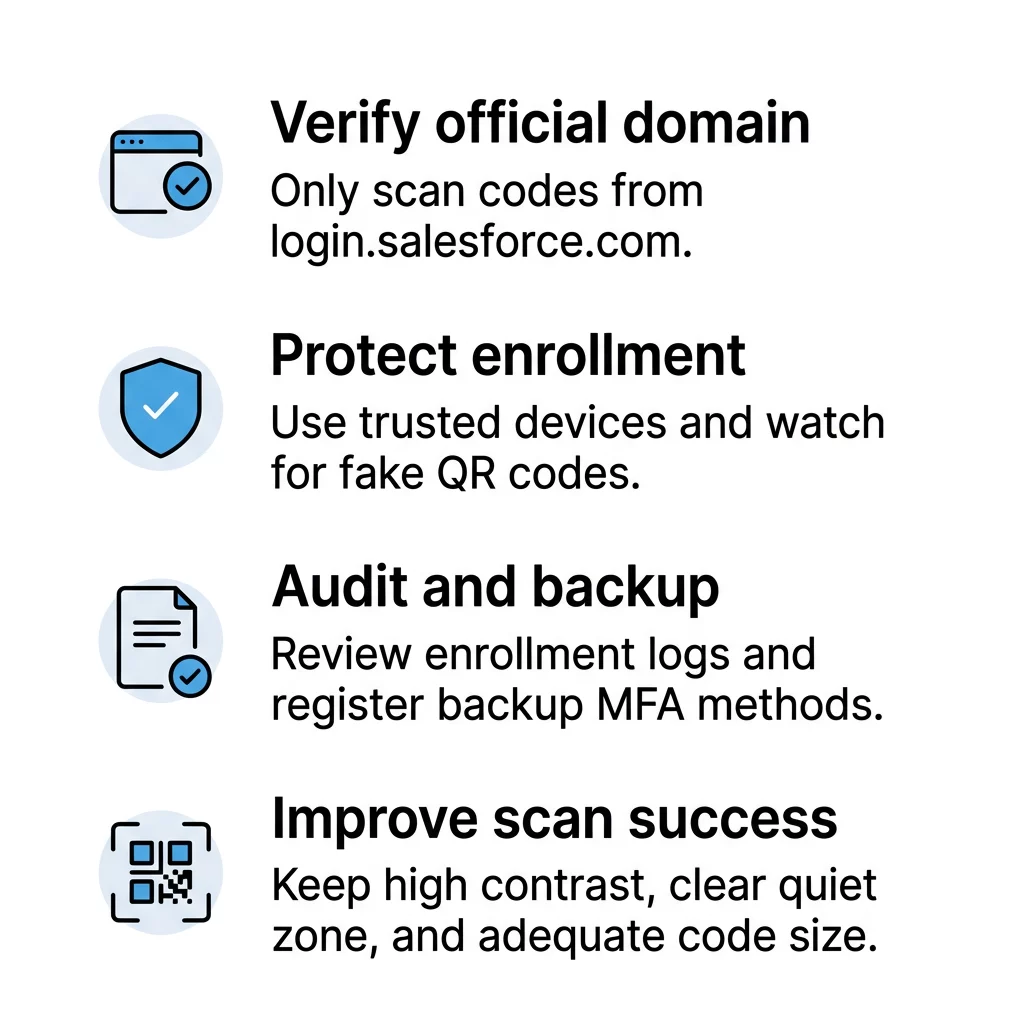
- Maintain sufficient contrast: Ensure that user displays provide sharp contrast between dark modules and the light background. Dark mode browser extensions or screen glare can distort the visual markers the camera needs to parse.
- Preserve the quiet zone: Keep the border area surrounding the QR code completely free from overlapping interface elements or custom page banners.
- Synchronize system clocks: Verify that both the user’s computer and mobile device use automated network time. TOTP algorithms rely on synchronized timestamps; clock drift between devices invalidates generated verification codes even if the QR scan succeeds.
- Provide manual entry fallbacks: Instruct users who experience hardware camera defects to use the manual key entry method rather than abandoning the setup process.
Similar setup principles apply across other enterprise tools, as outlined in our LastPass QR-Code-Einrichtungsanleitung and our tutorial on QR codes for Gmail.
User Onboarding and Device Recovery Workflows
A resilient MFA policy accounts for lost, damaged, and upgraded mobile hardware without degrading overall system defense. Disabling MFA when an employee loses a phone creates serious security gaps. Instead, administrators should establish standard recovery protocols using temporary codes.
Implement these steps to manage lost devices and re-enrollment securely:
- Terminate active sessions: End the compromised user session immediately from Salesforce Setup to block unauthorized access from misplaced hardware.
- Disconnect the registered authenticator: Navigate to the user’s detail record and click Disconnect next to the active authenticator registration to invalidate the paired secret key.
- Issue a temporary verification code: Generate a temporary verification code set to expire between 1 and 24 hours, allowing the employee to log in without bypassing security rules.
- Register the replacement device: Guide the employee to access their advanced user settings and scan a fresh QR code using their replacement mobile device.
- Invalidate the temporary code: Click Expire Now on the temporary code as soon as the employee completes the new device registration.
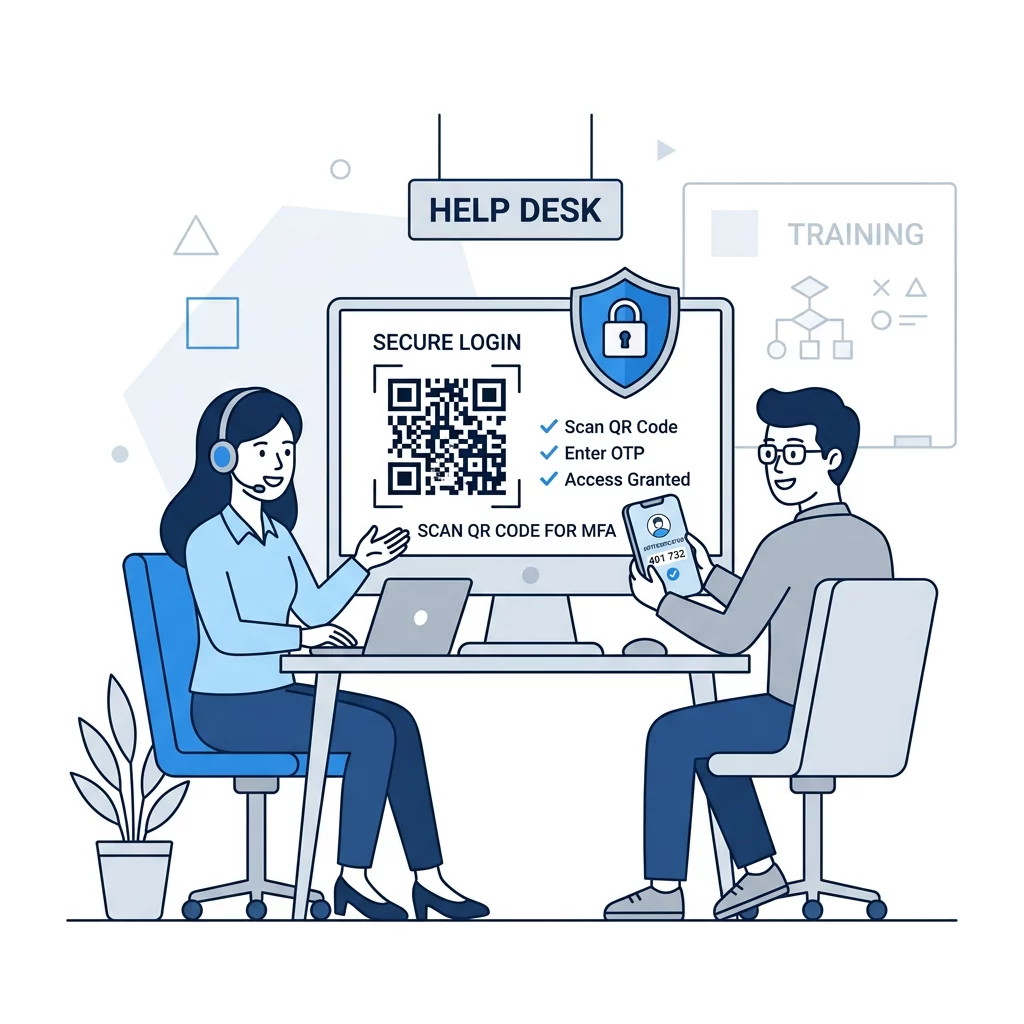
Clear communication and structured change management eliminate onboarding roadblocks. Provide your team with explicit visual walkthroughs, sandbox practice environments, and identity verification checklists for help desk staff before enforcing org-wide mandates.
Häufig gestellte Fragen
No. Standard camera apps only read embedded web links and cannot generate time-based verification codes. Users must scan the Salesforce enrollment QR code from within a dedicated authenticator app, such as Salesforce Authenticator, Google Authenticator, or Authy.
Do not disable MFA for the user. Instead, disconnect the old authenticator on the user’s detail page in Setup, issue a temporary verification code valid for up to 24 hours, and have the user log in to scan a new QR code on their replacement device.
The most common cause is clock drift. The authenticator app calculates codes based on the current timestamp. If the mobile phone and the computer display different times or timezones, the generated codes will not match Salesforce servers. Setting both devices to automatic network time resolves the issue.