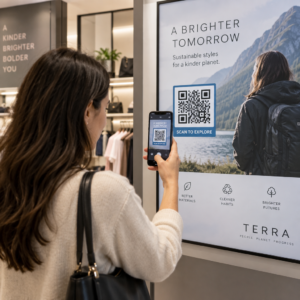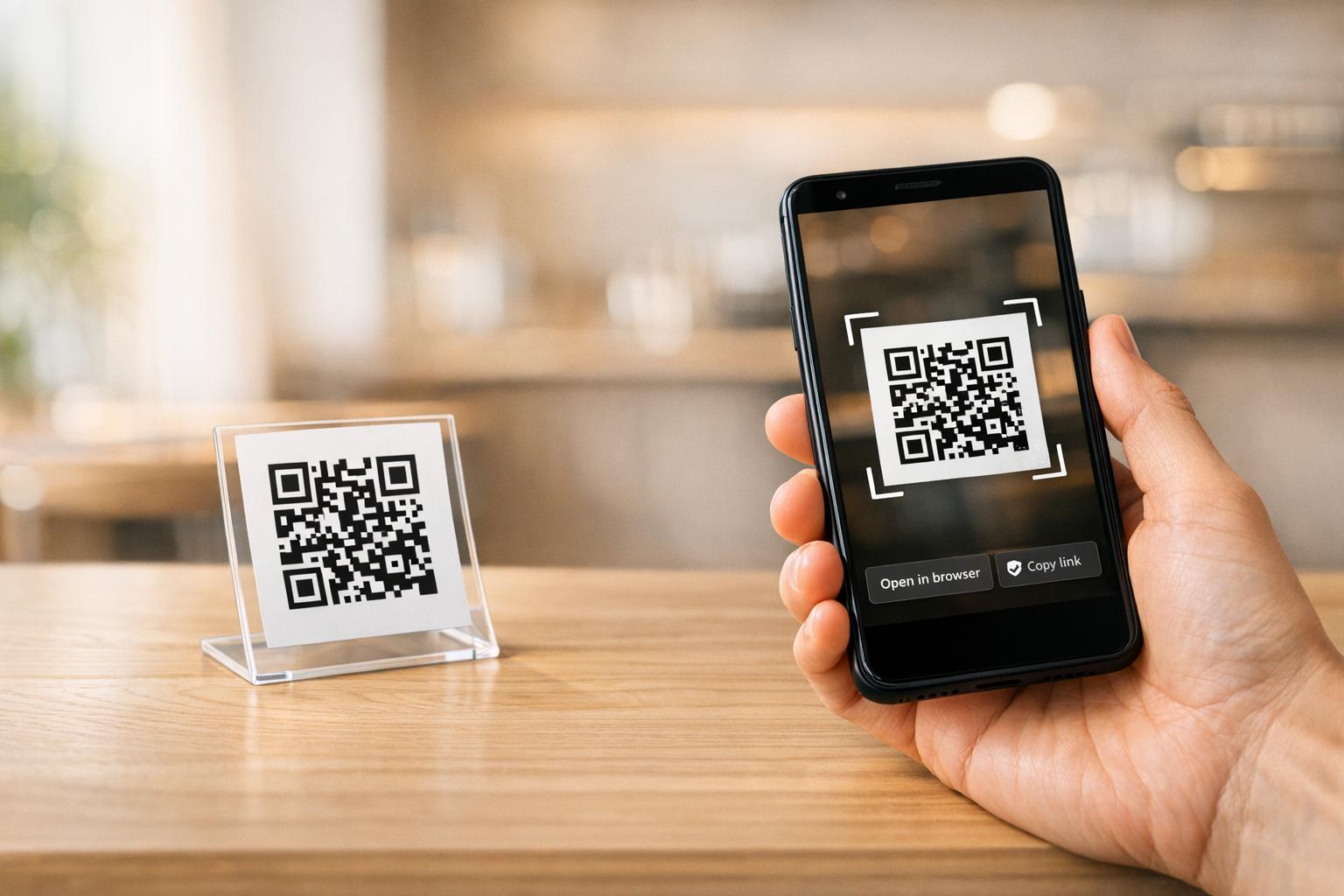
QR codes are everywhere – menus, tickets, product packaging, and more. Scanning them on Android devices has become easier, with 86% of Android 9.0+ devices offering built-in QR code scanning. However, not all devices or methods work the same, and common problems like glare, poor lighting, or outdated software can cause issues.
Here’s what you’ll learn:
- Top scanning methods: Use the native camera app, Google Lens, ή Google Chrome for quick results.
- Common problems: Issues like low-quality codes, small sizes, or device-specific quirks can disrupt scanning.
- Troubleshooting tips: Adjust settings, clean your camera lens, or try alternative apps to resolve issues.
Stay safe by learning πώς να εντοπίζουν ψεύτικους κωδικούς QR and verifying links before clicking, as 73% of QR code users don’t check for risks, exposing them to potential scams. This guide explains how to scan efficiently and avoid pitfalls.
How to Scan QR Codes on Android Phone if Camera App won’t Scan (Best Method)
sbb-itb-74874c9
Πώς να σαρώνετε κωδικούς QR σε Android
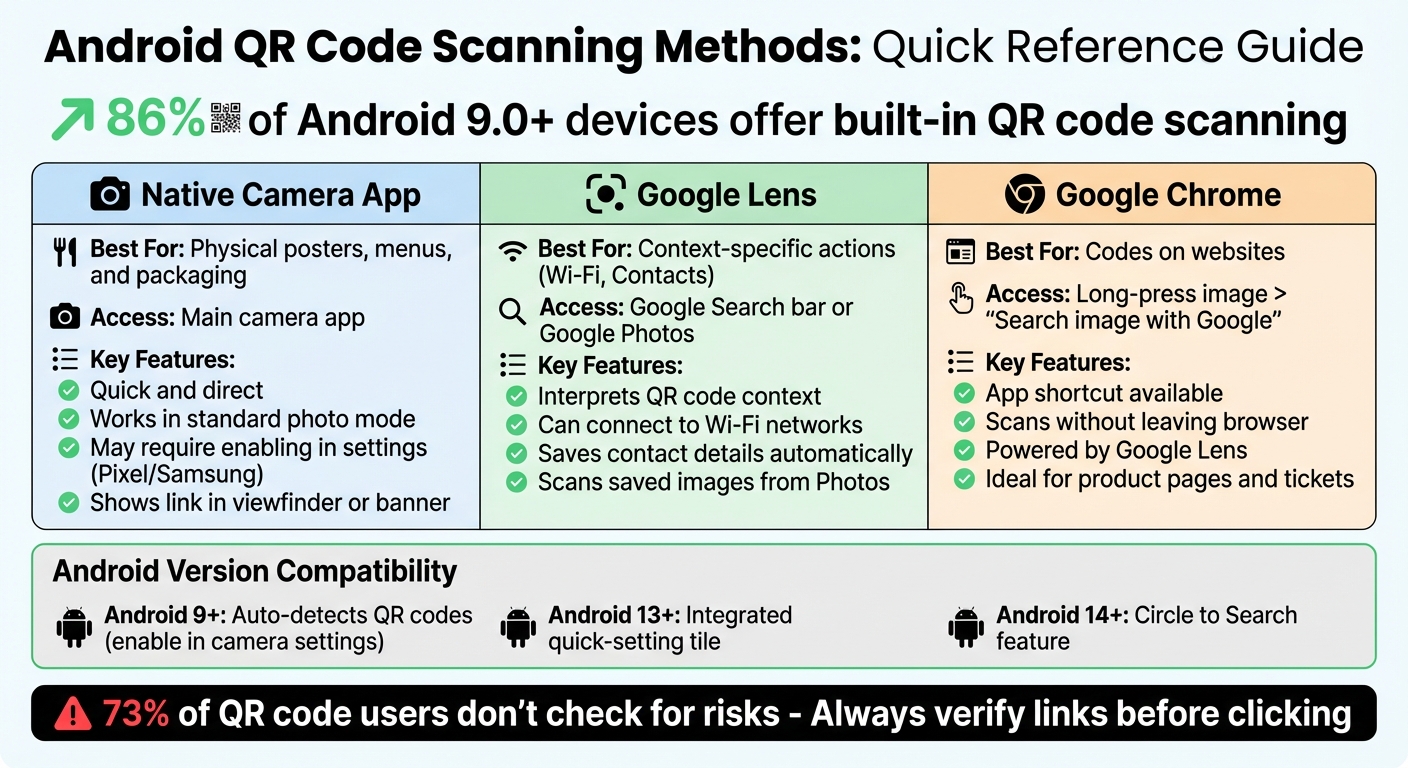
Android QR Code Scanning Methods Comparison Guide
Android devices make scanning QR codes simple, with built-in tools available on most devices. Since Android 9.0 (Pie), around 86% of Android users can scan QR codes directly, without needing additional apps. Whether you’re scanning a physical code, a saved screenshot, or an image online, there are several reliable methods to choose from. Here’s a breakdown of the most common ways to scan QR codes on Android, starting with the native camera app.
Χρήση της Εγγενούς Εφαρμογής Κάμερας
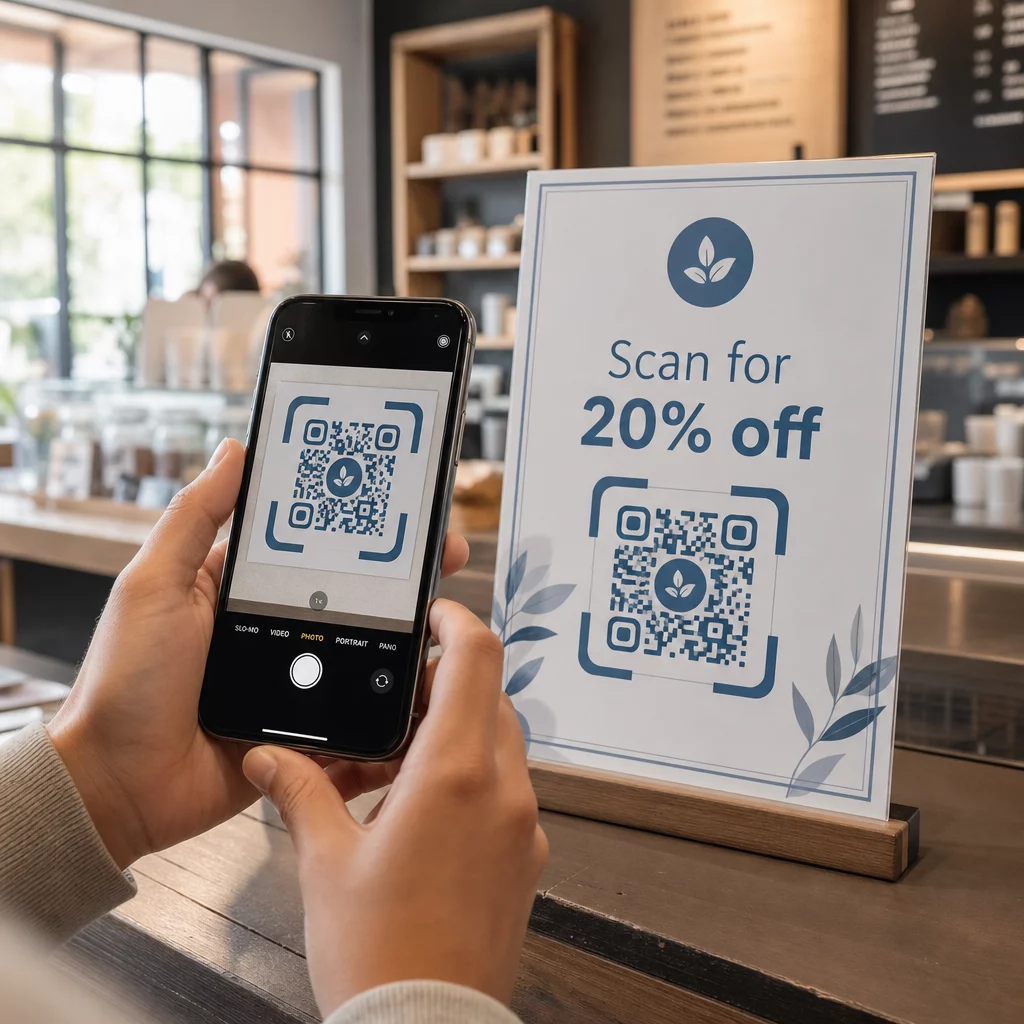
The quickest way to scan a QR code is by using your phone’s native camera app. Open the camera, position the QR code within the frame, and tap the link or banner that appears. Make sure the camera is in standard photo mode – QR scanning typically won’t work in Portrait or Video modes.
Some devices, like Google Pixel και Samsung phones, may require enabling QR code scanning in the camera settings or Quick Settings menu. How the link appears varies by device: Google Pixel displays it directly in the viewfinder, while Samsung phones usually show a banner at the top.
If the QR code isn’t recognized, clean your camera lens with a soft cloth and ensure there’s enough light. Always double-check the URL preview before clicking to avoid unsafe websites and phishing risks.
Χρησιμοποιώντας Google Lens
Google Lens offers more than just basic scanning; it can interpret the QR code’s context. For instance, it can connect you to a Wi-Fi network or save contact details from a vCard without additional steps. You can access Google Lens through the Google app (tap the Lens icon in the search bar), the Google search widget on your home screen, or by saying, "Hey Google, open Google Lens".
Simply point Lens at the QR code to see a clickable link or action – no need to take a photo. For scanning saved images, open Google Photos, select the image, and tap "Lens". This is especially handy if you need to scan a code displayed on your device.
Scanning with Google Chrome or the Google App
Google Chrome makes scanning QR codes easy with app shortcuts. Long-press the Chrome app icon on your home screen or app drawer, then select "Scan QR code" from the menu. If you find a QR code while browsing, press and hold the image, then choose "Search image with Google" to scan it without leaving the browser. This feature, powered by Google Lens, is great for scanning codes on product pages, εισιτήρια εκδηλώσεων, or digital Φυλλάδια.
| Μέθοδος | Καλύτερα για | Access Point |
|---|---|---|
| Native Camera | Physical posters, menus, and packaging | Main camera app |
| Google Lens | Context-specific actions (Wi-Fi, Contacts) | Google Search bar or Google Photos |
| Google Chrome | Codes on websites | Long-press image > "Search image with Google" |
Browser-Based Scanning with Vivaldi
ο Vivaldi browser includes a built-in QR scanner, conveniently located in the address bar. Tap the QR icon on the right side of the URL field, or long-press the Vivaldi app icon and select "Scan QR Code" from the menu. If you’ve added the Vivaldi search widget to your home screen, you can also tap the QR icon for quick access.
When a URL is detected, Vivaldi opens it in a new tab. If the code contains text or other data, the browser lets you copy the information or search the web. Additionally, Vivaldi has a QR code generator for sharing web pages – just go to the Vivaldi menu, select "Share", and choose "QR code." Be sure to grant camera permissions the first time you use this feature and keep your camera lens clean for optimal results.
Common QR Code Scanning Problems on Android
Even with various scanning methods available, certain hardware and environmental factors can still disrupt performance. Knowing these common issues can help you choose the best approach for scanning QR codes in different situations.
Compatibility Issues Across Android Versions and Devices
Older or budget Android devices often come with low-resolution or fixed-focus cameras, making it difficult to scan small or dense QR codes. Problems can also arise if features like "Camera scan suggestions" are turned off or if the camera lacks proper permissions. Another common issue stems from outdated Google Play services, which can prevent scanners from functioning properly. Additionally, device-specific customizations can complicate matters – some Samsung or OnePlus users, for example, may need to enable a Quick Settings tile or rely on Google Lens instead of the default camera app.
Here’s a quick reference for common Android scanning issues and solutions:
| Common Android Issue | Προτεινόμενη Επιδιόρθωση |
|---|---|
| Camera won’t "snap" focus | Clean the lens and adjust the distance as needed |
| Link doesn’t appear | Turn on "Camera scan suggestions" or use Google Lens |
| Glare on glossy surfaces | Change the angle of the phone to reduce glare |
| Dense or complex QR code | Opt for a Δυναμικός κωδικός QR to simplify the pattern |
| Low-light conditions | Use the flashlight feature in the scanner app |
Failure to Detect Low-Quality or Small QR Codes
Tiny or poorly printed QR codes often struggle to scan, particularly if they lack a clear "quiet zone" – a white border of at least four modules. Without this, the scanner may confuse the code with surrounding elements. Similarly, QR codes with low color contrast, such as light designs on light backgrounds, can be hard to detect. Static QR codes with large amounts of data, like URLs over 300 characters, create dense patterns that older Android cameras may not decode effectively.
Patrick Augstein, Customer Support Team Manager at Bitly, highlights the importance of functional QR codes:
"A non-functional QR Code serves as a barrier rather than a bridge. It frustrates users and wastes your budget".
For printed materials, low-resolution images can lead to pixelation, which confuses scanners. Resizing small JPEG or PNG files for larger formats like αφίσες ή Φυλλάδια often results in blurry edges. Environmental factors like glare on glossy or laminated surfaces, smudged lenses, or motion blur from shaky hands further reduce scanning success. As a general guideline, QR codes should be at least 2 cm x 2 cm (approximately 1 inch x 1 inch) for small items like Επαγγελματικές κάρτες. For larger applications, use a rule of thumb: 1 inch of QR code size for every 10 feet of scanning distance.
Problems Scanning QR Codes from Images or Screens
In addition to device compatibility, digital displays present their own set of challenges. Glossy screens can reflect light, creating "hot spots" that obscure key parts of the QR code. Brightness levels also play a role – if the screen is too dim, the code blends into the background; too bright, and the details may wash out. Keep brightness at least 70% for optimal results. Some screens use Pulse Width Modulation (PWM) dimming, which causes flickering that can confuse camera sensors. Updates to Android, such as changes to screen contrast and refresh rates, have also made QR codes displayed on one device harder to scan with another. Cracked screens or low-resolution monitors can further distort QR code geometry, making them unreadable.
Power-saving modes on Android can reduce camera performance and processing speed, leading to missed scans. When scanning a saved image, compression artifacts and low resolution may cause pixelation, preventing the camera from recognizing the code. In such cases, using Google Lens through the Google Photos app or the Google app often works better than relying on the phone’s native camera.
Troubleshooting Solutions and Tips
Sometimes, a quick tweak is all it takes to fix scanning failures. These troubleshooting tips focus on common issues tied to configuration settings, environmental conditions, and device-specific quirks – most of which can be resolved by adjusting a few settings or making small changes.
Enabling QR Scanning in Camera Settings
If you’re using a Google Pixel device, start by opening the Camera app. Tap on Ρυθμίσεις, then go to More settings, and enable the "Camera scan suggestions" option. With the Camera from Google app, you can scan QR codes in the default photo mode or a dedicated QR mode. However, keep in mind that scanning is typically disabled in portrait or video modes.
| Android Version | Native QR Support | Suggested Fix |
|---|---|---|
| Android 9+ | Auto-detects QR codes | Enable in camera settings |
| Android 13+ | Integrated quick-setting tile | Use quick settings for faster access |
| Android 14+ | Circle to Search feature | Long-press on the feature for navigation |
For older Android versions, you may need to rely on browser-based scanners or third-party apps to scan QR codes effectively.
Improving Detection for Poorly Printed QR Codes
If you’re struggling with scanning a QR code that’s blurry or poorly printed, a few simple tricks can help. Start by cleaning your phone’s camera lens with a microfiber cloth to ensure there’s no smudge or dirt interfering with detection. Use good lighting or turn on your phone’s flashlight to reduce shadows and blur.
When scanning glossy or laminated surfaces, tilt your phone or the QR code slightly to reduce glare. Hold your phone steady – resting your arms on a surface can help minimize motion blur. Begin scanning from about a foot away and slowly move closer until the QR code fills about one-third of your screen to help the autofocus lock in.
If the native camera app still struggles, try using Google Lens or a third-party QR scanner app. These apps often come equipped with better detection algorithms for tricky codes. Also, avoid scanning codes placed against busy or patterned backgrounds, as this can confuse the camera’s focus.
Device-Specific Fixes for Pixel Devices
Pixel users experiencing recurring scanning issues can try these steps to resolve the problem. Often, the issue stems from outdated camera apps, software glitches, or interference from third-party apps. To fix this:
- Clear the Camera app’s cache and storage. Go to Settings > Apps > Camera > Storage, then select Εκκαθάριση κρυφής μνήμης και Clear Storage.
- Use Safe Mode to check if a third-party app might be causing the issue. Safe Mode disables non-essential apps, making it easier to identify conflicts.
- Take advantage of the "Scan QR Code" tile in the Pixel Quick Settings menu. This tile provides a dedicated scanning interface and can automatically perform actions like opening a URL or connecting to Wi-Fi once the code is detected.
These steps should help resolve most QR scanning problems on Pixel devices.
Conclusion and Key Takeaways
With the troubleshooting tips and scanning methods outlined, making QR code scanning seamless is well within reach. In fact, 86% of Android 9.0+ devices now support scanning directly through native tools like the Camera app, Google Lens, or browser shortcuts.
If scanning issues arise, simple fixes like cleaning your lens, improving lighting, or adjusting settings often resolve them. For persistent problems, especially on Pixel devices, clearing the Camera app’s cache or using the Quick Settings tile can be effective. Keep in mind that factors like glare, low contrast, or poor lighting can impact scanning, even with the most advanced tools.
ο design and quality of the QR code itself are equally crucial. Codes with high contrast, sufficient quiet zones, and sharp resolution are more likely to scan successfully across devices. To ensure professional-grade codes, tools like Δημιουργία κώδικα QR της Pageloot can help, whether you’re creating codes for Επαγγελματικές κάρτες, Μενού, ή αφίσες.
For added flexibility, consider using δυναμικοί κωδικοί QR. These allow you to update URLs even after printing, making them ideal for campaigns or older devices. Always test your codes on various Android devices before rolling them out to guarantee compatibility and a smooth experience for users. Regularly checking the quality of your codes throughout your campaign will help ensure they perform reliably and keep users satisfied.
Συχνές Ερωτήσεις
How do I scan a QR code without opening my camera app?
To scan a QR code without launching your camera app, Android provides built-in tools that make the process simple and quick. If your phone runs Android 9.0 or newer, you can rely on Google Lens ή Chrome for this task.
- Google Lens: Access it through your camera app or by activating Google Assistant. Once open, just point it at the QR code for instant results.
- Chrome: The browser includes a QR scanner feature, offering an easy and direct way to scan codes without extra apps.
These options ensure you can scan QR codes effortlessly, right from your device.
What should I do if my phone scans some QR codes but not others?
If your phone can scan some QR codes but struggles with others, a few common factors might be at play: poor lighting, glare, low camera focus, or even damaged or low-quality codes. To troubleshoot, try these tips:
- Inspect the QR code: Make sure it’s clear, clean, and undamaged.
- Adjust lighting: Brighten the area and reduce any glare on the code.
- Clean your camera lens: A smudged lens can impact focus. Also, hold your phone steady while scanning.
- Enable camera permissions: Double-check that your camera has the necessary access.
If the problem continues, there’s a good chance the issue lies with the QR code itself.
How can I tell if a QR code link is safe before I open it?
To ensure a QR code link is safe, start by checking its source. Is it from a trusted individual, company, or organization? If you’re unsure, proceed with caution. Use tools like your phone’s camera app, Google Lens, or Chrome to preview the link before opening it. This allows you to inspect the URL for anything suspicious, such as strange or unfamiliar domains. Always avoid links from untrusted sources or ones that seem out of place to minimize potential security risks.
Σχετικές Αναρτήσεις Ιστολογίου- Πώς να βελτιστοποιήσετε τους κωδικούς QR για σάρωση από κινητό
- Τι να κάνετε αν ο κωδικός QR μου δεν λειτουργεί: αιτίες και λύσεις
- Πώς να σαρώσετε έναν κωδικό QR σε φορητό υπολογιστή: Ένας πλήρης οδηγός για Windows και macOS
- Δημιουργήστε και σαρώστε έναν κωδικό QR Wi-Fi σε Android και iPhone: ο πιο γρήγορος τρόπος για να μοιραστείτε το διαδίκτυό σας