Frustrated with QR codes that won’t scan? 대부분의 common QR code problems boil down to three main causes: poor physical quality (like blurry prints or bad contrast), technical errors (such as broken links or expired codes), or scanning problems caused by lighting or distance. The good news? These problems are easy to fix.
Here’s what you can do:
- Test on different devices: Try scanning with both iOS 과 Android.
- Check print quality: Ensure the QR code isn’t blurry or pixelated.
- Verify the link: Manually enter the URL to confirm it works.
- Adjust size and contrast: Follow the 10:1 rule for size and use a dark code on a light background.
- Fix expired codes: Dynamic QR codes can be updated without reprinting.
How to Solve Issues With QR Codes Not Scanning | Android & iPhone | Apple Phone Won’t Scan or Work
sbb-itb-74874c9
소개
QR codes pack information into a grid of black and white squares, known as modules. When you scan a QR code with your smartphone camera, it deciphers the arrangement of these squares and performs an action – like opening a website, displaying text, or connecting to 와이파이. The three larger squares in the corners, called alignment markers or "eyes", ensure the scanner reads the code correctly. This encoding system not only organizes data efficiently but also determines how the QR code communicates the information, whether it’s fixed or modifiable.
How QR Codes Store and Share Data
QR codes store data in two main formats: 정적 또는 동적. Static QR codes embed all the information directly into the pattern. Once created, the data in a static QR code can’t be changed, making them ideal for permanent uses like sharing Wi-Fi credentials or displaying text. On the other hand, dynamic QR codes link to an online destination via a short URL. This keeps the pattern simpler, easier to scan, and allows updates to the destination URL without altering the physical code. Plus, dynamic codes often come with tracking capabilities, like monitoring scan counts, user locations, and device types.
One standout feature of QR codes is their built-in error correction. Even if a QR code gets partially damaged, dirty, or obscured, it can still be scanned. Error correction levels range from Level L (recovering up to 7% of data) to Level H (recovering up to 30%). This feature highlights the importance of well-designed codes for consistent reliability.
Why Proper Setup Matters
The design of a QR code – its size, contrast, and image quality – plays a huge role in ensuring it scans successfully. Scanners depend on clear edges and high contrast to identify the pattern. Experts recommend maintaining at least a 40% contrast ratio (or a 4.5:1 ratio) between the QR code and its background for optimal clarity.
Size is equally important. A useful rule is the 10:1 ratio: divide the expected scanning distance by 10 to determine the minimum size of the QR code. For instance, if users will scan the code from 20 inches away, the QR code should be at least 2 inches wide. Additionally, leave a blank margin (known as a quiet zone) around the QR code – this margin should be four times the width of one module to help scanners recognize the boundaries.
"A lot of apps for scanning your QR Code expect the code to have a darker contrast to the background, so if you scan a code with a white foreground it will not work for everyone." – William Taylor, Career Development Manager at VelvetJobs
9 Common Reasons Your QR Code Isn’t Working
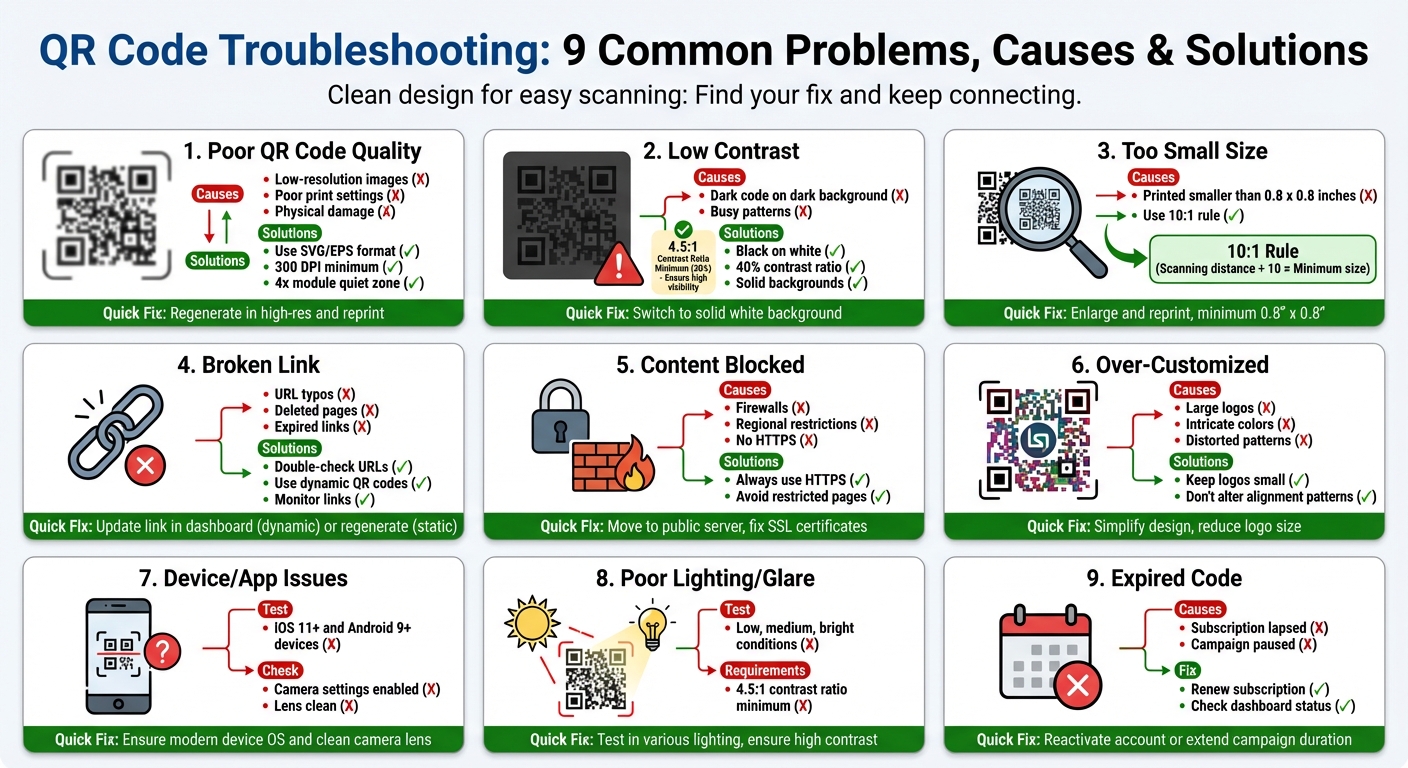
9 Common QR Code Problems and Solutions Flowchart
QR code failures usually boil down to a few familiar issues – things like image quality, design choices, technical errors, or even the conditions in which they’re used. Pinpointing the problem makes fixing it much easier. Most of the time, these issues can be resolved quickly, especially if you’re using a 동적 QR 코드. Here are the nine most common reasons your QR code might not work and how to fix them.
1. Poor QR Code Quality
Blurry or pixelated QR codes are one of the top reasons they fail to scan. If your code looks unclear, a smartphone camera may struggle to read it.
Causes
This happens when low-resolution images are scaled up for printing, leading to pixelation. Printing with low-quality settings or using unsuitable file formats can also result in blurry output. Physical damage – like scratches, creases, or water stains – can obscure the code, and resizing it unevenly can distort the grid pattern.
솔루션
Always create QR codes in high-resolution formats like SVG or EPS. These vector files stay sharp no matter the size. For print materials, aim for a resolution of at least 300 DPI. Leave a quiet zone (blank space) around the code that’s at least four times the width of one module.
Fixes
If the QR code is already printed, generate a higher-resolution version and reprint it. Replace any damaged materials, and test the code on different devices before printing in bulk.
2. Low Contrast Between QR Code and Background
If the contrast between the QR code and its background isn’t strong enough, scanners may not be able to read it.
Causes
This often happens when a dark QR code is placed on a similarly dark background or when a light-colored code is used on a white surface. Busy patterns, gradients, or textured backgrounds can also make it harder for scanners to isolate the QR code.
솔루션
Use a dark QR code on a light background – black on white works best. Maintain at least a 40% contrast ratio (or 4.5:1) between the code and the background. Avoid using gradients, transparent backgrounds, or overly complex designs.
Fixes
Switch to a solid white or neutral background. If your branding requires color, regenerate the code in black or another very dark shade. Test the code under various lighting conditions to ensure it scans properly.
3. QR Code Is Too Small
A QR code that’s too small can be hard for cameras to pick up, especially from a distance.
Causes
Many QR codes are printed smaller than the recommended minimum size of 0.8 x 0.8 inches (2 x 2 cm), particularly on items like business cards. For larger formats like posters or billboards, the code needs to be proportionally larger to account for scanning from further away.
솔루션
Follow the rule of thumb: the minimum size of your QR code should equal the scanning distance divided by 10. For handheld items, stick to at least 0.8 x 0.8 inches. Make sure there’s enough quiet space around the code as well.
Fixes
If the QR code is too small, enlarge and reprint it. If reprinting isn’t an option, move the code closer to users, like placing it at eye level. Always test the code from the intended scanning distance before finalizing its placement.
4. Broken or Incorrect Destination Link
Even a perfectly designed QR code won’t work if the link it points to is broken or incorrect.
Causes
Typos in the URL, like missing "https://" or spelling errors, are common. Links can also break if landing pages are deleted, moved, or if temporary campaign links expire.
솔루션
Double-check every URL manually before publishing. Dynamic QR codes are a great option since they let you update the destination link without reprinting the code. For ongoing campaigns, regularly monitor link availability.
Fixes
If you’re using a dynamic QR code, simply update the link in your dashboard. For static QR codes with broken links, you’ll need to replace the code and reprint the materials. Test the updated code on multiple devices to ensure it works.
5. QR Code Content Is Blocked or Restricted
Sometimes the QR code scans just fine, but users can’t access the content due to restrictions or security settings.
Causes
Firewalls, regional restrictions, or internet filtering – common in schools or corporate settings – can block access. Security warnings can also pop up if the destination URL doesn’t use HTTPS or if there are issues with SSL certificates.
솔루션
Always use HTTPS for your URLs to avoid security warnings. Don’t link to restricted or internal pages that require special access. For public campaigns, ensure the content is accessible to everyone.
Fixes
If the content is hosted on an internal server, move it to a public one. Fix any SSL issues by renewing certificates or switching to HTTPS. Test the link on different networks, like mobile data and public Wi-Fi, to confirm accessibility.
6. QR Code Was Over-Customized
Customizing your QR code can make it look great, but too much design can interfere with its functionality.
Causes
Adding large logos, intricate colors, or other design elements can disrupt the QR code’s alignment patterns. Overly stylized designs might distort the code’s structure, making it unreadable.
솔루션
Keep logos small and avoid altering key alignment patterns. Use a balanced error correction level so the code still works even if part of it is obscured.
Fixes
Simplify the design by reducing logo size or removing excessive customizations. Regenerate the QR code with a cleaner look, and test it after every change to make sure it scans properly.
For more tips on creating effective QR codes, visit qualitative qr tags generator.
To see pricing options for advanced features, check out qr code generator pricing.
QR Code Troubleshooting Tips
To ensure your QR code works seamlessly, start by testing it on various devices and under different conditions. Then, verify the technical details and check the destination content for any potential issues.
Test with Multiple Devices and Apps
Begin by scanning the QR code using at least five devices, including both iOS (11+) and Android (9+) systems. If you’re using older devices, consider installing a reliable scanning app like 구글 렌즈. Most modern smartphones have built-in QR scanning through their camera apps, which tend to be more dependable. On iPhones, double-check that QR scanning is enabled in the Camera settings. A clean camera lens is also essential – smudges or fingerprints can interfere with focus.
Additionally, inspect the physical condition of the QR code itself. If the code appears damaged, blurry, or distorted, it might not scan properly; following QR 코드 가독성 best practices can help prevent these issues. Once you’ve ruled out these issues, review the destination content to ensure it’s functioning correctly.
Verify Lighting, Contrast, and Size
Lighting plays a key role in successful QR code scanning. Test the code under various lighting conditions – low, medium, and bright – to identify any issues caused by glare or reflections, especially on glossy or laminated surfaces. If glare is a problem, try tilting your phone or using your hand to block reflections.
The contrast ratio of the QR code should be at least 4.5:1. This ensures the code is easily distinguishable from its background. Size is another critical factor – follow the 10:1 rule: the QR code’s width should be at least 10% of the intended scanning distance. For instance, a 2-inch QR code should ideally be scanned from about 20 inches away. If the code is too small, consider enlarging it or moving it closer to your audience.
Check Destination URL or Content
Manually type the URL into a browser to confirm it works and is free of errors. This step can quickly reveal broken links, typos, or expired campaign URLs. For dynamic QR codes, log into your generator’s dashboard to ensure the link is active. If you’re using a subscription service, verify that your plan is current and that you haven’t exceeded the scan limit.
It’s also a good idea to test the URL on different network types like Wi-Fi, 4G, 그리고 5G to ensure the content isn’t being blocked by any specific provider.
Confirm the QR Code Hasn’t Expired
Dynamic QR codes can stop functioning if your subscription lapses or if a campaign is manually paused. Log into your account to check the status of the code and renew or update it if necessary. When deciding how to choose the right QR code, remember that static QR codes have hardcoded data and cannot be modified. If the link for a static code is broken, you’ll need to generate a new one and reprint your materials.
To avoid disruptions, consider setting up alerts for expiration dates, especially if you’re managing multiple campaigns. For pricing and plan options, you can visit the QR code generator pricing page to find a solution that works for you.
Real-Life Examples
(Expired dynamic code) A downtown café ran into trouble when the QR codes on their table tent menus started leading to error pages during lunch hours. The issue? Their dynamic subscription had expired. Once they renewed the plan, the QR codes started working again instantly – showing how dynamic QR codes can be updated without reprinting.
Another example highlights the importance of print quality. (Low-resolution image) A local fitness studio printed 500 promotional posters featuring a QR code, but none of them worked because the code was created using a low-resolution PNG file. To fix the problem, they generated a high-resolution SVG version of the QR code, tested it on different devices, and reprinted the posters. Following tips for faster QR code scanning can prevent these printing errors. This solved the issue completely.
Design choices can also make or break QR code functionality. (Low contrast) A marketing agency learned this the hard way when their minimalist QR code design – light gray on a white background – failed to scan under store lighting. An expert explained that QR scanners need strong contrast to work effectively. The agency switched to a classic black-on-white design, and scan rates improved immediately.
자주 묻는 질문
How do I fix a QR code that won’t scan because of low contrast?
If your QR code isn’t scanning properly, it might be due to low contrast. To fix this, make sure the code is in a dark color (like black) and placed on a light background (such as white). Stay away from gradients, intricate patterns, or shiny surfaces, as these can disrupt the scanner’s ability to read the code. High contrast between the QR code and its background is key for smooth scanning.
How can I fix a broken or incorrect QR code link?
If your QR code link isn’t functioning, the first step is to carefully review the destination URL for any typos or mistakes. Confirm that the link is live, accessible, and hasn’t been removed or relocated.
To simplify updates down the line, you might want to use 동적 QR 코드. These let you update the linked URL without needing to create a new QR code. If the link remains broken, redirect users to a working page or generate a fresh QR code with the correct link. Always test the QR code after making updates to ensure it operates as expected.
Can a damaged QR code still be scanned?
Yes, a QR code can still be scanned even if part of it is damaged. This is thanks to 오류 수정 레벨이 있습니다 built into the design, which allow the code to recover data even if up to 30% of it is missing or damaged. That said, whether it scans successfully depends on how severe the damage is and the error correction level selected when the QR code was created.
For better results, make sure the QR code is printed clearly and avoid damaging key areas, especially the finder patterns (the squares in the corners). If scanning fails, you might need to regenerate the code using a higher error correction level.
관련 블로그 게시물