인쇄된 QR 코드가 고객에게 도달했을 때 스캔되지 않습니까? 읽을 수 없는 코드 하나는 잠재 고객 손실, 사용자 불만, 인쇄 예산 낭비로 이어집니다. 이 가이드는 크기, 대비, 재료와 같은 기술적 변수를 마스터하여 코드가 매번 안정적으로 작동하도록 하는 방법을 설명합니다.
크기와 거리가 스캔 성공을 좌우하는 이유
Think of a smartphone scanner like a high-speed optical reader that must resolve every individual square, known as a module, to decode the embedded data. In technical standards like ISO/IEC 18004, the module width is known as the X-dimension, where module height equals module width. If the printed code is too small, the camera sensor cannot distinguish between these tiny modules, causing the scan to fail.
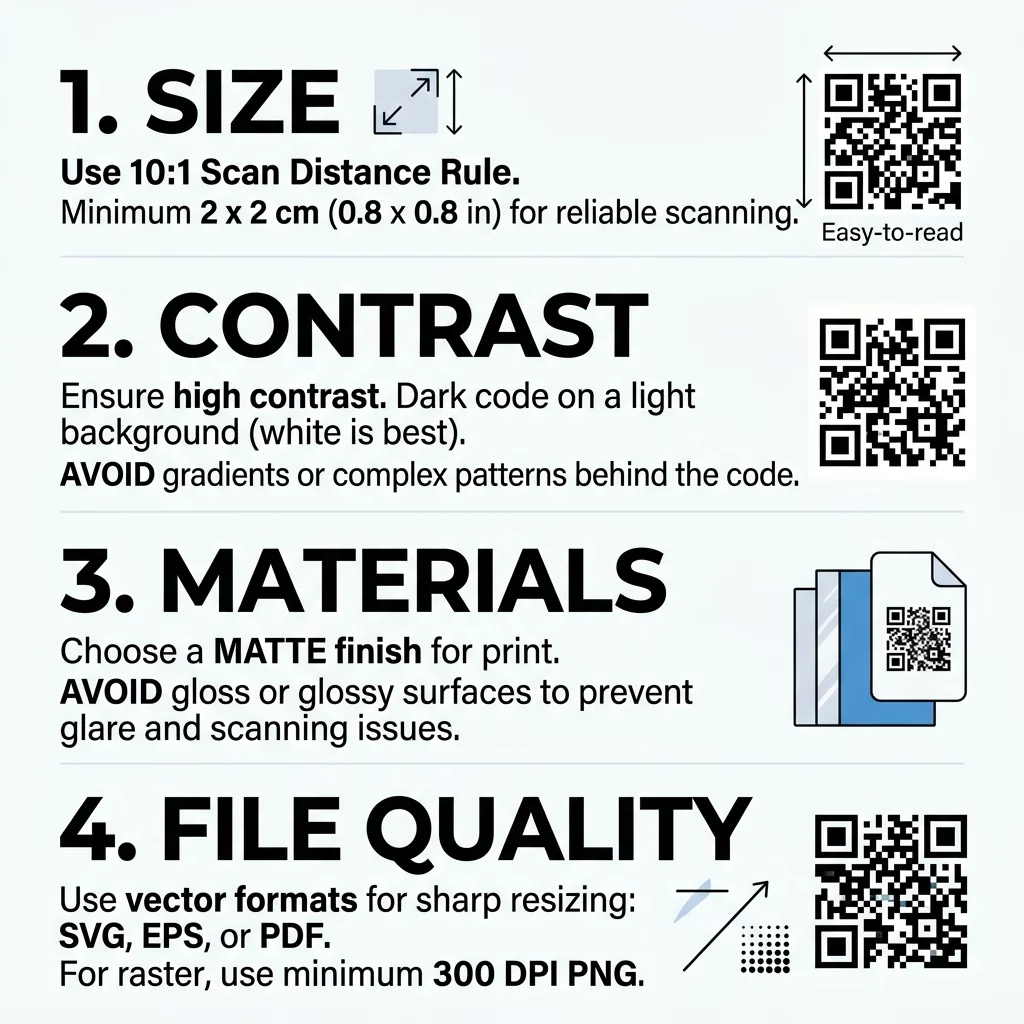
To ensure your code remains legible, calculate your dimensions using the standard 10:1 scanning ratio. This means the width of your code should measure at least one inch for every ten inches of expected scanning distance (or one centimeter for every ten centimeters). For handheld items like flyers, brochures, or packaging labels, never print smaller than 0.8 x 0.8 inches (2 x 2 cm).
Data density also directly affects physical size requirements. Encoding large volumes of information, such as lengthy tracking URLs, forces the generator to pack more modules into the grid. As the grid grows denser, each individual module shrinks, requiring a larger overall print footprint to remain legible. For detailed measurements tailored to specific print formats, consult our comprehensive QR 코드 크기 가이드 or review recommended dimensions in our guide on 명함에 가장 적합한 QR 코드 크기.
Achieving High Contrast and Color Balance
Optical scanners read QR codes by measuring the difference in light reflectance between dark modules and light backgrounds. Dark colors absorb light, while light surfaces reflect it back into the camera lens. If the difference in reflectance is insufficient, the sensor cannot identify where the data pattern begins and ends. While classic black-on-white provides the maximum 21:1 contrast ratio, brand colors can work effectively when you maintain strong visual separation.
- Maintain a minimum contrast ratio of 4:1 between your foreground modules and background.
- Keep foreground elements darker than the background, avoiding inverted color schemes that trip up older scanning software.
- Avoid color gradients, drop shadows, and textured fills that introduce ambiguous mid-tones.
- Choose solid, saturated hues rather than soft pastels or metallic inks for the data grid.
For a deeper look into selecting accessible brand palettes and evaluating color combinations, review our guide to QR 코드 색상 대비 모범 사례.
Navigating Substrates, Inks, and Surface Finishes
The physical material carrying your code determines how light enters the camera sensor. Matte paper serves as the industry benchmark because its smooth, non-reflective surface diffuses ambient light evenly. When you print on non-standard materials or apply specialty finishes, physical distortions can compromise module geometry.
- Matte and Uncoated Paper: Provides crisp edge definition and eliminates surface reflection, making it ideal for high-volume marketing collateral.
- Corrugated Cardboard: Exhibits high absorbency and porous textures that cause dot gain, where wet ink spreads into adjacent light areas. Compensate by sizing up your code.
- Woven Textiles: Distorts module grids when the fabric stretches, folds, or shifts along its weave. Use simple codes with larger dimensions.
- Transparent Glass and Acrylic: Risks losing contrast whenever the background shifts or lighting changes. Print a solid white opaque patch directly behind the code.
- Polished Metal and Foil: Creates harsh specular highlights and lens glare. Apply a matte lacquer knockout over the code area to diffuse light reflection.
- Cylindrical Packaging: Warps the square grid around curved bottles and cans. Minimize wrapping distortion by orienting the code along the vertical axis of the container.
Different commercial print methods introduce distinct variables to monitor. Offset lithography maintains crisp module fidelity but requires press operators to manage dot gain on uncoated stock. Flexography uses flexible plates that can squeeze liquid ink outward under heavy pressure, filling in fine gaps. Screen printing lays down heavy ink deposits that can bridge narrow module separations if the artwork is scaled too small. Always inspect proofs on your selected production substrate to verify that ink spread remains within acceptable limits.
Selecting Vector Formats and Error Correction
A design that appears razor-sharp on an office monitor can easily print blurry if the source file lacks sufficient resolution. Scaling up a low-resolution raster graphic stretches pixels into fuzzy, anti-aliased edges that confuse optical decoders. To safeguard edge sharpness, always export your artwork as resolution-independent vector files like SVG, EPS, or print-ready PDF.
If production constraints force you to supply raster graphics like PNG files, ensure the artwork measures at least 300 DPI at final print dimensions. Never use lossy compression formats like JPEG, which generate compression artifacts around sharp module corners. If you need to adapt existing artwork for a new layout, follow technical instructions on how to correctly resize a QR code without losing fidelity.
You can further protect print readability by configuring Reed-Solomon error correction. This algorithm embeds redundant data blocks into the code, enabling scanners to reconstruct missing or damaged information:
- Level L (Low): Recovers approximately 7% of missing data; keeps module density low for clean, simple prints.
- Level M (Medium): Recovers approximately 15% of missing data; provides standard reliability for everyday collateral.
- Level Q (Quartile): Recovers approximately 25% of missing data; ideal for packaging subject to transit wear and tear.
- Level H (High): Recovers up to 30% of missing data; recommended for harsh outdoor signage or designs incorporating centered brand logos.
To explore how data redundancy safeguards your physical marketing assets, read our complete breakdown on 편집 가능한 QR 코드에서 오류 수정이 작동하는 방식.
Generate Print-Ready Vector QR Codes Looking to export crisp vector files and adjust destination links at any time? Create your custom designs with the Pageloot QR 코드 생성기 to guarantee clean prints and track real-time scan analytics.
Protecting Quiet Zones and Package Placement
Physical placement on the finished product is just as vital as print resolution. Every standard QR code requires a quiet zone – a completely blank border surrounding all four sides of the module grid. According to ISO/IEC 18004 standards, this margin must measure at least four modules wide (4X). The quiet zone signals to the camera processor where background design elements stop and code data begins.
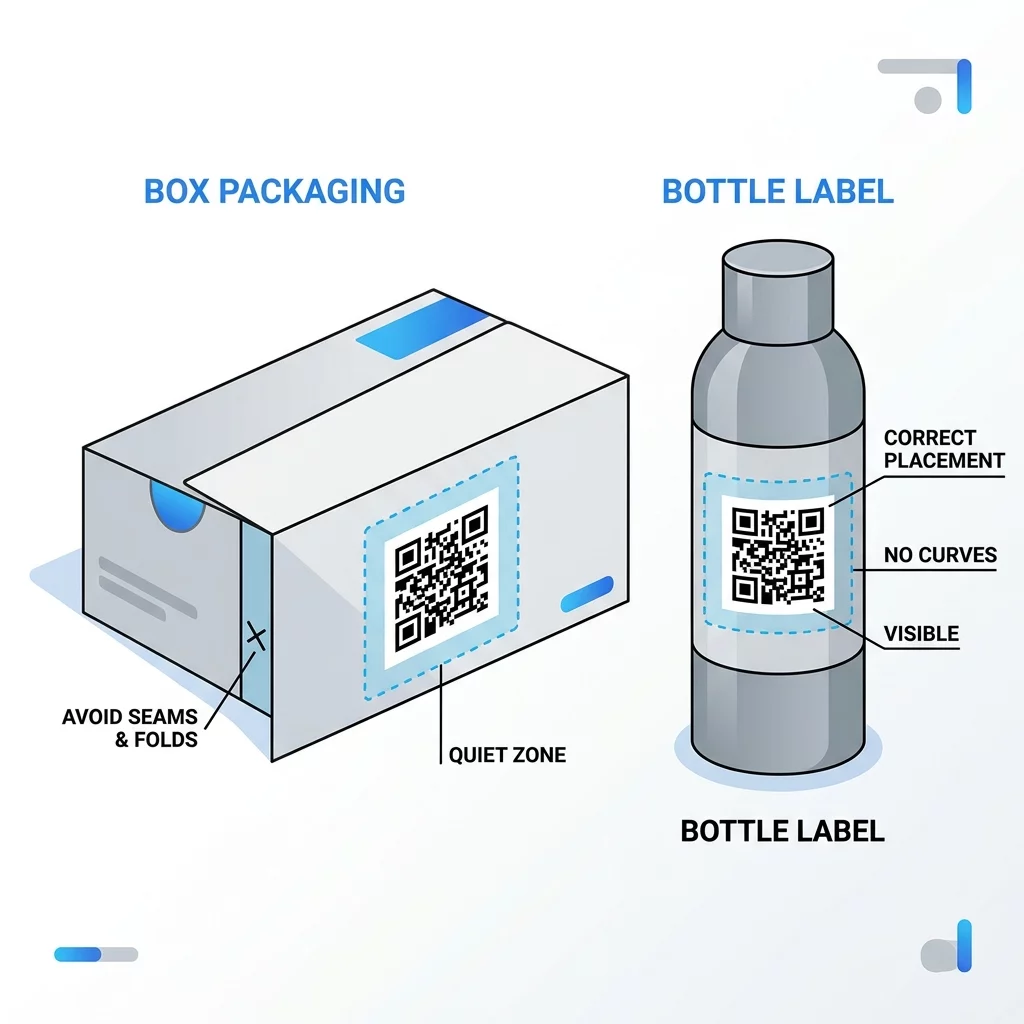
Never allow artwork, text, trim margins, scores, or glue flaps to encroach upon this border. In addition, place your codes strategically to shield them from mechanical damage:
- Keep codes well clear of packaging fold lines, box seams, and die-cut perforations that sever data modules.
- Position artwork away from high-friction contact points, such as box bottoms or outer flaps prone to scuffing during transit.
- Apply protective, non-gloss scuff varnishes over labels subjected to rough handling or moisture.
- Select UV-stable inks for outdoor banners and signage to prevent optical fading from prolonged sun exposure.
For broader strategies on integrating codes into customer touchpoints, review our 마케팅에서 QR 코드 배치에 대한 궁극적인 가이드 alongside fundamental QR 코드 가독성을 위한 모범 사례.
Executing Pre-Print Proofing and Scan Testing
Never commit to a commercial production run based solely on an on-screen preview. Screen pixels emit active backlighting, whereas physical prints rely on passive ambient reflection. The only way to guarantee field performance is to run physical test proofs through rigorous quality control before final approval.
Review technical guidelines in our QR 코드 인쇄 해상도 가이드 and follow our step-by-step tutorial on how to test a QR code before printing. Use this systematic testing protocol on your physical proof:
- Hardware Diversity: Test using modern flagship smartphones, budget devices, and older phones equipped with lower-grade optical sensors.
- Distance Verification: Scan from the primary intended reading distance, as well as half-distance and double-distance positions.
- Angular Scans: Attempt scans at 30-degree and 45-degree off-axis angles, both horizontally and vertically, to simulate natural user posture.
- Ambient Lighting: Evaluate performance under dim indoor lighting, direct fluorescent office light, bright outdoor sunlight, and with camera flash enabled to expose glare.
- Decode Speed: Verify that scanning instantly triggers the intended destination URL or action across each tested device using an online QR코드 스캔.
Streamlining Your Print Workflow for Flawless Scans
Producing reliable printed QR codes requires treating every asset as a precision optical element rather than standard graphic art. By specifying vector file formats, enforcing high contrast, respecting the four-module quiet zone, and choosing matte substrates, you protect your print investments and deliver smooth customer interactions.
Take control of your physical marketing campaigns today. Create high-resolution vector assets, apply resilient error correction, and monitor user engagement by generating your next dynamic print code with Pageloot.
자주 묻는 질문
While ISO standards technically allow for smaller module sizes, the practical minimum for consumer smartphones is 0.8 x 0.8 inches (2 x 2 cm). Printing below this threshold sharply increases read failure rates on budget devices and in low-light environments.
Printing on a transparent background makes scanning reliability entirely dependent on whatever surface sits behind the material. If that underlying surface is dark, textured, or patterned, scanners will fail to decode the modules. Always print on a solid, opaque light background.
To neutralize specular glare on reflective materials like metallic pouches, gloss plastics, or foil cartons, print a solid white matte patch directly beneath the code. This creates a non-reflective base that preserves the necessary contrast for camera lenses.