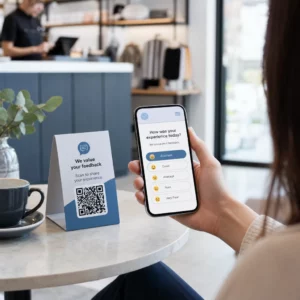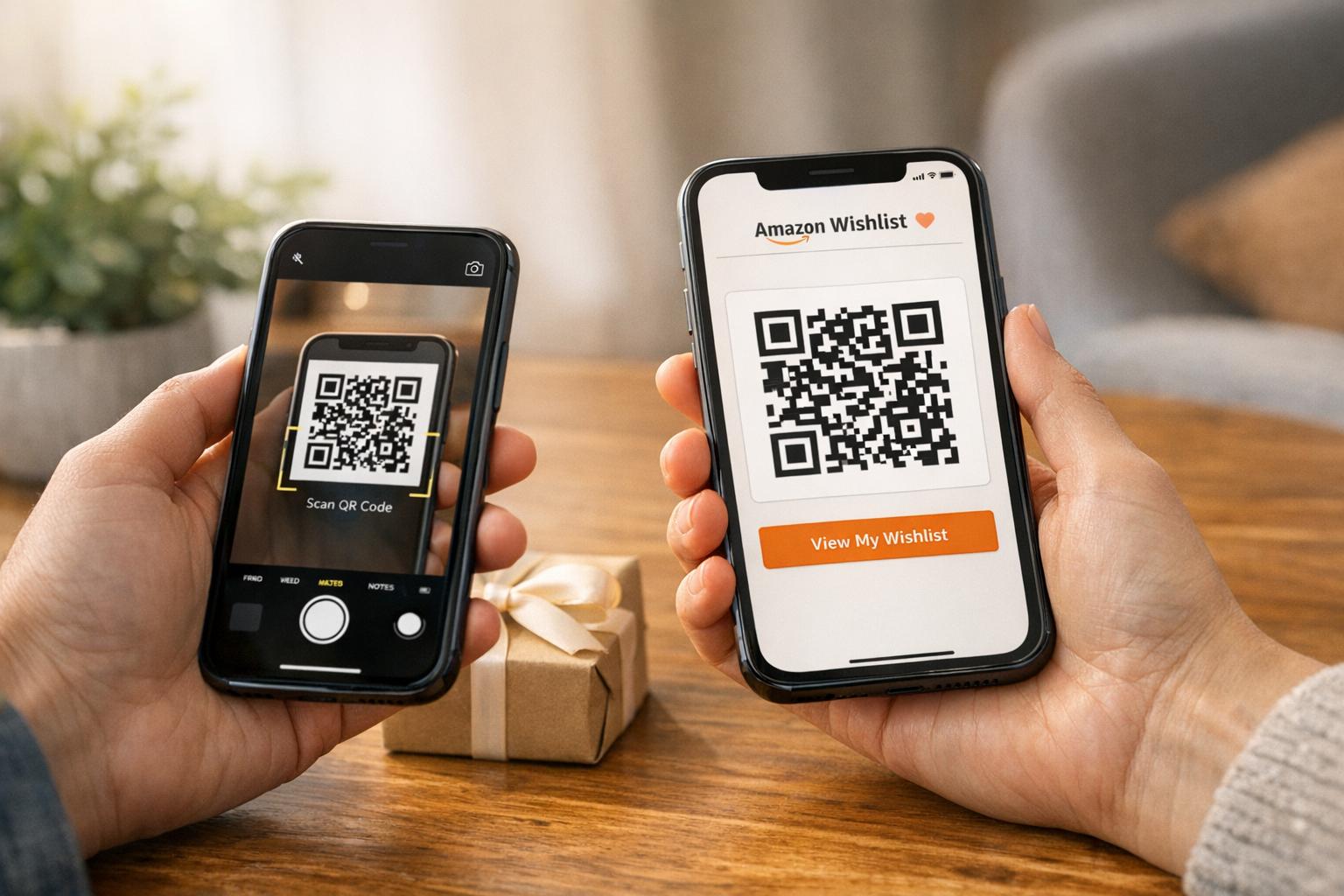
Want to make sharing your Amazon Wishlist easier? QR codes are the answer. They turn your wishlist link into a scannable image that anyone with a smartphone can access instantly – no need to type or copy long URLs. Perfect for events like weddings, baby showers, or fundraisers, QR codes simplify gift-giving and ensure your list is just a scan away.
Here’s how it works:
- What It Is: A QR code links directly to your Amazon Wishlist.
- How It Helps: No typing errors, faster access, and ideal for connecting print and digital sharing.
- Who Uses It: Event planners, teachers, 소규모 비즈니스 마케팅 teams, and anyone organizing group gifts.
- How to Make One: Use a QR code generator, customize it, and test it before sharing.
Whether for personal events or professional campaigns, QR codes make sharing your wishlist smooth and stress-free.
How To Create QR Code For Amazon Wishlist (Step By Step)
sbb-itb-74874c9
What is an Amazon Wishlist QR Code?
안 Amazon Wishlist QR code is a scannable image that provides a quick and easy way to access your wishlist. Instead of sharing a long, complicated URL, this code condenses it into a neat graphic that can be scanned with a smartphone. It’s a practical tool that works across both physical and digital platforms, making it easier to share your wishlist without the hassle of messy links.
When someone scans the QR code with their phone’s camera or a QR reader app, it instantly opens your Amazon Wishlist in their browser or the Amazon app. No need to copy and paste or search for the link – it’s fast and straightforward. Now, let’s dive into how these codes work and why they’re so useful.
How QR Codes Work for Amazon Wishlists
The concept behind QR codes is simple yet effective. These two-dimensional barcodes can store a lot of data, including URLs, and are designed to remain functional even if slightly damaged.
For an Amazon Wishlist, the QR code encodes the specific URL of your list. When scanned, it takes the user directly to your wishlist without any extra steps. To make this work, ensure your wishlist is set to "Public" or "Shared" with "View Only" access. With the basics covered, let’s explore the advantages of using these codes.
Benefits of Using QR Codes for Wishlists
QR codes make sharing your wishlist easier and more reliable. Unlike traditional links, which can be mistyped or misplaced, QR codes eliminate those risks entirely. A quick scan gets the job done without any room for error.
They’re also user-friendly, even for people who aren’t tech-savvy. Scanning a QR code is quick and intuitive, making it accessible to everyone.
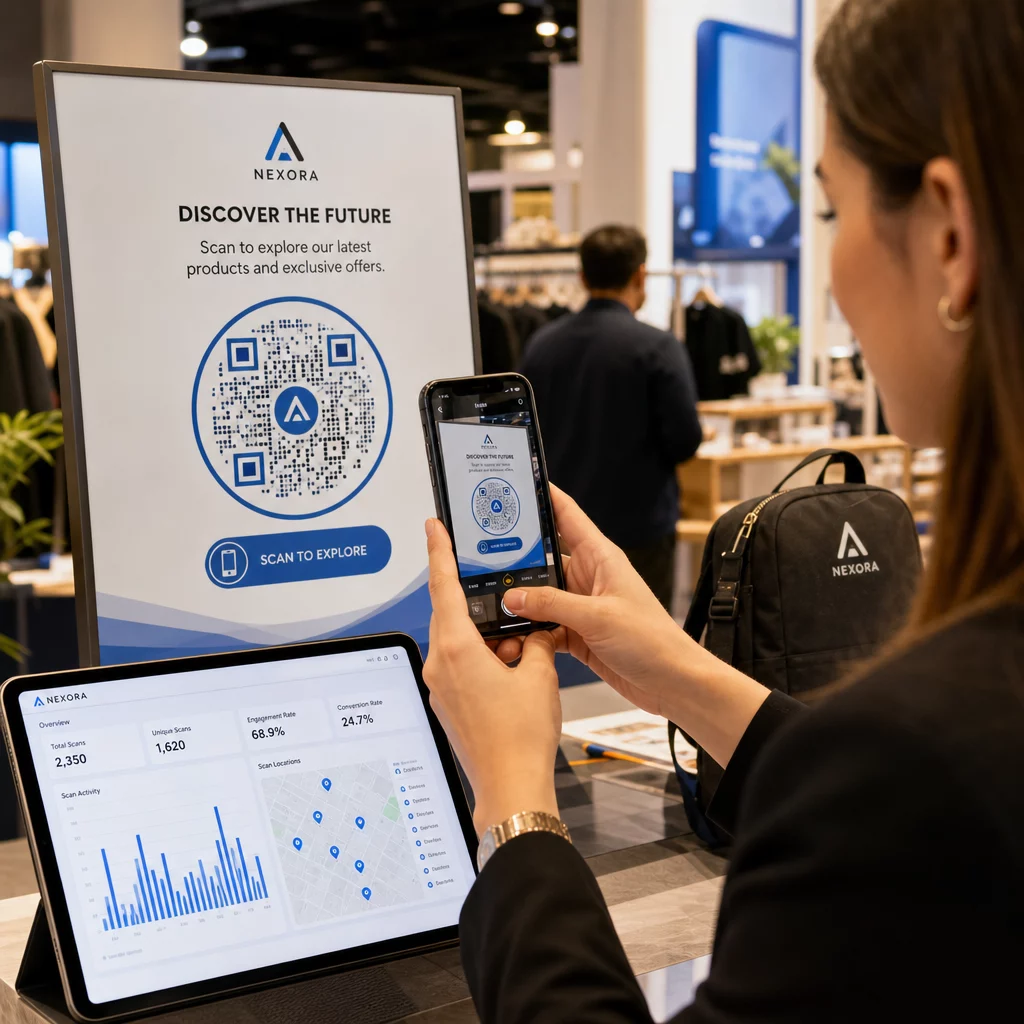
를 사용하여 QR 코드 생성기 adds even more flexibility. For instance, 동적 QR 코드 allow you to update your wishlist link without needing to reprint materials. This is especially handy if you want to adapt your list for different occasions, like holidays or special events. Dynamic codes can also track data, such as how many people scanned your code, their location, and the devices they used.
If you’re adding QR codes to printed materials like 청첩장 또는 event posters, make sure the code is at least 2 cm x 2 cm. This ensures it scans correctly on most smartphones, keeping the process smooth and hassle-free.
How to Create an Amazon Wishlist QR Code
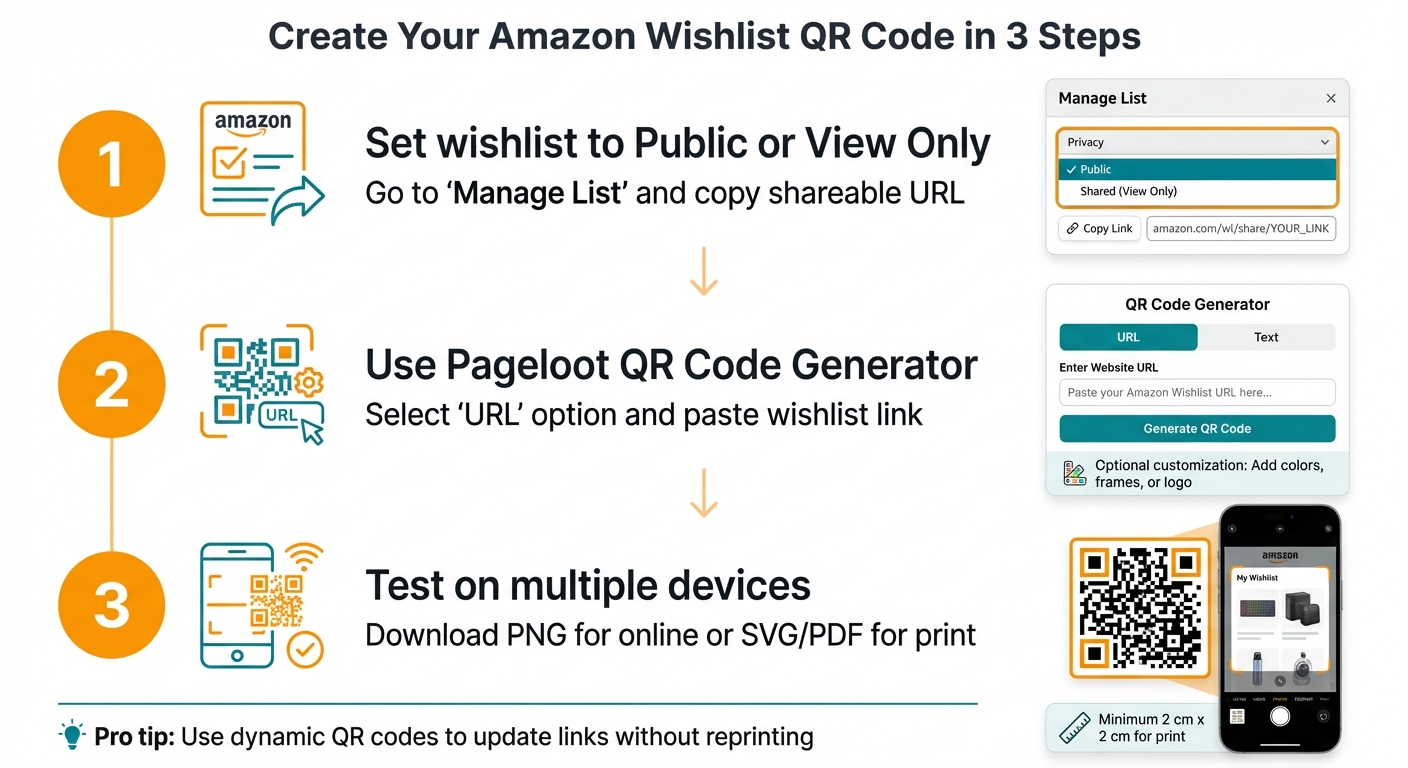
How to Create an Amazon Wishlist QR Code in 3 Steps
Making a QR code for your Amazon Wishlist is a simple process. You’ll need to grab your wishlist link from Amazon, convert it into a QR code using a generator, and test it to ensure it works properly. Here’s how you can do it step by step:
What to Have Ready Before You Start
Before you dive in, make sure you have a few things ready. First, you’ll need an active Amazon Wishlist. It should be set to 공개 또는 View Only so others can access it. If you don’t already have a wishlist, log into your Amazon account, go to "Accounts & Lists," and create one.
To check your privacy settings, go to "Manage List" and confirm it’s not set to private. Without the right settings, even a working QR code won’t let others see your wishlist.
Next, get your wishlist’s shareable URL. Open your wishlist, click "Send List to Others" 또는 "Invite" at the top right, and select "View Only" permission. This ensures no one can accidentally change or delete items. Copy the link – you’ll need it to create your QR code.
How to Generate Your QR Code with 페이지룻
Once you have your Amazon Wishlist link, visit Pageloot’s QR 코드 생성기. Choose the "URL" 또는 "Link" option and paste your wishlist link into the provided field.
You can also customize the QR code to suit your needs. Add colors, frames, or even a logo to make it more appealing. Just make sure the design maintains strong contrast so it’s easy to scan.
When you’re happy with the design, download the QR code. For online sharing, a PNG file is ideal. If you’re printing it on materials like 명함 또는 전단지, opt for an SVG or PDF format to ensure the image stays sharp and clear.
Testing Your QR Code
Always test your QR code before sharing or printing it. Use your smartphone’s camera or a QR code scanner app to make sure it opens your wishlist correctly. Double-check that the list is accessible without requiring someone to log into your Amazon account.
It’s a good idea to test the code on multiple devices. You can also ask a friend or family member to scan it to ensure it works for others. If the code doesn’t function as expected, review the URL for mistakes and create a new QR code if needed. This is especially important for static QR codes since you can’t edit the link after printing—a key factor when 올바른 QR 코드 선택 for your needs.
Customization and Branding Options
A simple black-and-white QR code gets the job done, but it doesn’t have to be dull. Personalizing your QR code can make it more engaging and visually aligned with your event or brand. Pageloot offers tools to customize your Amazon Wishlist QR code, helping it reflect your unique style or branding. Whether you’re organizing a wedding, hosting a fundraiser, or promoting your business, a tailored QR code adds a professional and intentional touch. This balance of design and functionality enhances both its appearance and the trust it inspires.
Designing Your QR Code
Start by choosing colors that match your event or brand theme. For example, soft pastels work beautifully for a baby shower, while a corporate wishlist might look more polished in your company’s official colors.
Adding a logo or icon to the center of your QR code can make it instantly recognizable. You could use your company logo, a couple’s monogram for a wedding, or a gift-related icon to hint at its purpose. Keep the logo simple and centered to avoid disrupting the scanning patterns. You can also explore different pattern styles and corner square designs to give your QR code a unique look.
Consider including a frame with a clear call-to-action, like “Scan for Wishlist” or “View My Wishlist.” This provides clear instructions and can encourage more people to interact with it. For printed materials, download a high-resolution vector format like SVG or PDF. A size of at least 2 cm x 2 cm works well for close-up scanning on invitations, while larger sizes are better for event signage.
How Branding Helps
A well-designed QR code does more than look good – it builds trust and reinforces your brand. By incorporating your logo and custom colors, your QR code feels more credible and professional compared to a standard black-and-white version. This polished look is especially beneficial for businesses and influencers aiming to increase engagement and conversions.
For personal events like weddings or baby showers, a themed QR code feels like a thoughtful addition to the invitation, not just a technical detail. For businesses, a branded QR code creates a seamless link between physical marketing materials and your digital presence. Whether it’s on a product, poster, or vehicle, a consistent design strengthens your brand every time someone scans.
Before printing or sharing your customized QR code, always test it on multiple devices. Certain design choices – like overly large logos or insufficient 색상 대비 – can make scanning difficult. Ensure there’s enough white space (often called a “quiet zone”) around the code to help scanners read it without issues.
Ways to Use Amazon Wishlist QR Codes
Amazon Wishlist QR codes are a handy way to make sharing your registry simple and seamless. Instead of sending out long URLs, you can share a scannable image that connects people directly to your wishlist. This is especially useful for bridging the gap between physical materials and digital lists, making it easier for others to find and contribute.
Personal Gifts and Events
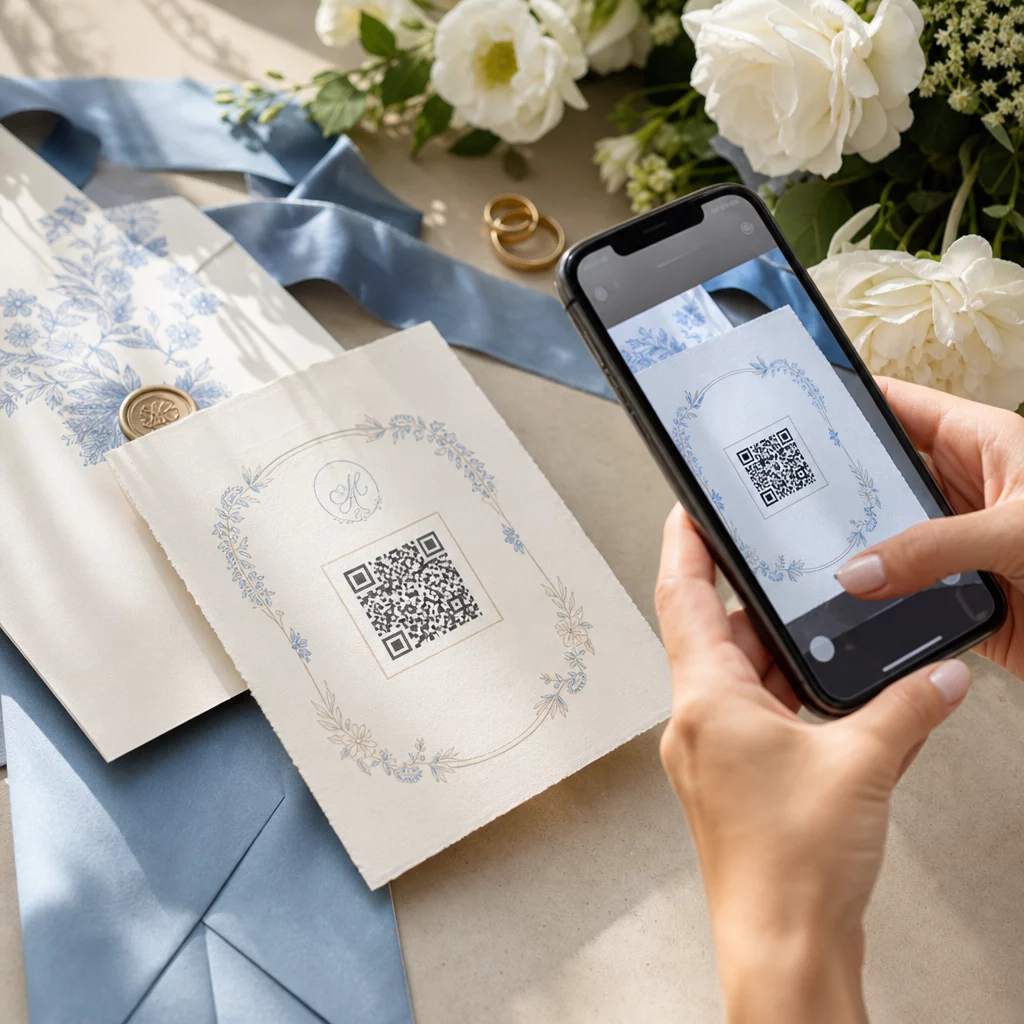
QR codes are perfect for making gift-giving easier during personal and group events. Whether it’s a wedding, baby shower, birthday, or holiday gift exchange, including a QR code on invitations or cards ensures guests can quickly access your wishlist without typing out a complicated link.
For weddings, you can place the QR code on save-the-dates, programs, or even table cards at the reception. Baby showers? Add the code to thank-you notes or themed decorations. During the holiday season, a family greeting card with a QR code is a fun way to share your wishlist for group gifting or Secret Santa exchanges. Including a small note like “Scan to view our Wish List” can help guide anyone unfamiliar with QR codes. For printed materials, a QR code size of at least 2 cm x 2 cm is ideal for easy scanning up close.
Fundraising and Charity
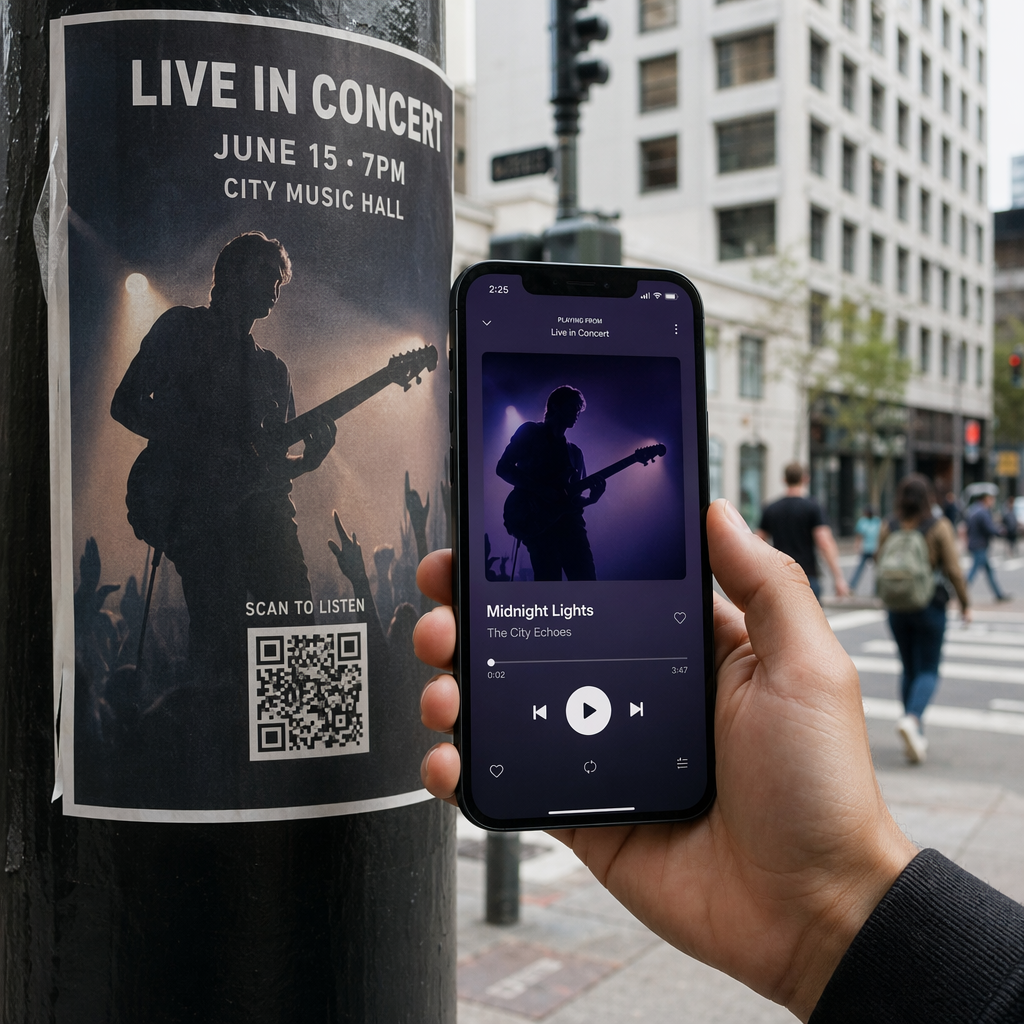
Nonprofits and charities can use QR codes to simplify donations. By placing them on flyers, posters, or digital announcements, you can direct supporters to a curated list of items needed for a specific cause. This approach helps prevent duplicate donations and ensures the right items are contributed.
Dynamic QR codes are especially useful for charity drives. They allow you to update the wishlist as needs evolve without having to reprint materials. Plus, you can track how many people scan the code and which channels – like emails or printed flyers – are driving the most traffic. This makes it easier to adjust your outreach efforts and maximize support.
Work and Classroom Uses
In classrooms, teachers can use QR codes to request supplies or donations. A simple QR code on newsletters or posters ensures parents can quickly access the list without digging through emails. Offices can use them for group gifting events, like birthdays or retirements, by displaying the QR code on digital announcements or printed materials.
For workplace charity drives or professional events, QR codes can be added to signs or even 명함 to direct employees or clients to a verified wishlist. To keep things secure, set the list to "View Only" to prevent changes. And, as always, test the QR code across different devices to ensure it works smoothly. Dynamic QR codes are a smart option for recurring needs, allowing you to update the link without reprinting materials.
How to Share QR Codes Effectively
Once you’ve created your Amazon Wishlist QR code, the next step is making sure it reaches your audience. The key is to make the code easy to find, accessible, and paired with a clear call-to-action so people know exactly what to do. Here’s how you can share your QR code both online and in print.
Sharing Online
Digital platforms are perfect for spreading your QR code far and wide. You can include it in emails, social media posts, or even digital invites. For example:
- Add the QR code to Instagram or TikTok videos, encouraging followers to scan and check out your wishlist.
- Embed it in emails with captions like "Scan to Shop" 또는 "View My Birthday Wishlist" to make its purpose clear.
If you’re using dynamic QR codes, you have the added advantage of tracking performance. You can QR 코드 스캔을 실시간으로 추적 to see which platforms drive the most scans, along with details like device types, scan locations, and times. This data can help you focus on the channels that are delivering the best results. Before sharing, test the QR code on both iOS and Android devices to ensure it works smoothly across different screens.
Sharing in Print
For physical materials like invitations, posters, or flyers, the quality of your QR code is everything. Use high-resolution formats like SVG or PDF to keep the code sharp and scannable, no matter the size. Make sure there’s strong contrast – dark code on a light background works best – and leave a "quiet zone" of white space around the code to avoid interference from other design elements.
When it comes to size, consider the scanning distance. A good rule of thumb: the scanning distance should be about ten times the size of the code. For example:
- On a business card or invitation, where the scanning distance is around 8 inches, the code should be at least 2 cm x 2 cm.
- For larger materials like banners or posters, aim for at least 10 cm x 10 cm to make scanning easy.
To help people who might not be familiar with QR codes, add simple instructions nearby, like "Scan to view our Wish List." This small step can make a big difference in ensuring everyone knows what to do.
While digital sharing is convenient, don’t underestimate the impact of print materials. They can be a highly effective way to connect with your audience in person.
Static vs Dynamic QR Codes
Before creating your Amazon Wishlist QR code, it’s important to decide between 정적 및 동적 QR 코드 depending on how you plan to use them.
정적 QR 코드
Static QR codes embed your Amazon Wishlist URL directly into the code. Once generated, the link is permanent and can’t be changed. If the wishlist is deleted or the URL changes, the QR code becomes unusable, and you’ll need to create a new one.
These codes are free to create and remain functional as long as the embedded link stays active. They’re perfect for one-time events, like a birthday party or baby shower, where the wishlist won’t need updates. You also don’t need an account or subscription – just generate the code, download it, and share.
One thing to note: if your Amazon Wishlist URL is long, it can make the QR code more complex. This might result in slower scanning, especially on smaller or textured prints.
동적 QR 코드
Dynamic QR codes use a short redirection URL, allowing you to change the destination link whenever you need through your QR 코드 생성기 dashboard. This flexibility makes them ideal for ongoing or long-term uses.
For instance, you could print one QR code on your business cards and update it to direct people to different seasonal wishlists – switching from "Birthday" to "Holiday" lists without having to reprint anything. Dynamic codes also offer analytics, letting you track scans, locations, times, and device types. This makes them a great fit for campaigns where you want to measure engagement, like fundraising efforts.
However, dynamic codes usually require a paid subscription or account to manage redirection and analytics. Platforms like Pageloot provide a 14일 무료 체험 to explore these features before committing. Keep in mind, if your subscription ends, the redirection service will stop, rendering the QR code inactive.
Which Type to Choose
Here’s a quick comparison to help you decide:
| 기능 | 정적 QR 코드 | 동적 QR 코드 |
|---|---|---|
| 편집 가능한 링크 | No – permanent once created | Yes – update anytime |
| 스캔 추적 | 제공되지 않음 | Includes analytics (scan count, location, device type) |
| 비용 | Typically free | Often requires a paid plan |
| 만료 | Never (if link stays live) | Depends on subscription status |
| Pattern Complexity | More complex for long URLs | Simpler – uses a short URL |
| 최고의 대상 | One-time events, personal use | Marketing, ongoing campaigns |
정적 QR 코드 are ideal for straightforward, one-time uses like weddings or graduation parties, especially if you’re on a budget and don’t need tracking. They’re simple and effective for short-term needs.
동적 QR 코드, on the other hand, are better suited for professional or long-term purposes. If you’re printing on expensive materials like business signage or wedding invitations, the ability to update the link later can save you from costly reprints. They’re also a great choice if you want to monitor performance or reuse the same code for different lists over time.
Before finalizing your QR code, always test it on iOS and Android devices to ensure it scans correctly – this is especially crucial for static codes since you can’t fix errors after printing.
결론
Amazon Wishlist QR codes turn lengthy URLs into simple scans, making it effortless for friends, family, or supporters to find exactly what you want. Whether you’re organizing a wedding, a classroom fundraiser, or a charity drive, these codes simplify the process and make gift-giving hassle-free.
~중에서 선택하기 정적 과 동적 QR codes comes down to your goals. Static codes work well for single-use events, while dynamic codes offer flexibility and the ability to track performance for ongoing campaigns.
다음도 가능합니다. QR 코드 사용자 지정 to match your event’s style and use analytics to monitor engagement. This combination of personalization and tracking ensures your QR codes stay effective, no matter the campaign.
Ready to create your own? Pageloot offers a 14일 무료 체험 so you can try dynamic QR codes with full editing and tracking features. Check out the QR 코드 생성기 and share your wishlist effortlessly – whether it’s on invitations, social media, or even in your email signature.
자주 묻는 질문
Will my Amazon Wishlist QR code work if my list is private?
Your Amazon Wishlist QR code works 유일한 if your list is set to 공개 또는 Shared. If your list is private, the QR code won’t work properly.
How do I scan the QR code and open it in the Amazon app?
To access your Amazon Wishlist via a QR code, simply use your smartphone’s camera or a QR code scanning app. Once scanned, the code will direct you to the wishlist link. If the Amazon app is installed and configured on your device, the link should open directly in the app, making the process quick and easy.
How big should the QR code be on invitations or posters?
When designing printed materials like invitations or posters, make sure the QR code is at least 2 x 2 inches (5 x 5 cm). This size helps ensure smartphones can scan it easily. For larger materials or cases where the QR code will be viewed from a distance, consider increasing its size. Use high contrast between the code and its background, and leave plenty of quiet space (empty margin) around the code to improve its scanability.
관련 블로그 게시물