Are you struggling to bridge the gap between physical touchpoints and digital wallet apps? Failing to provide a seamless scannable experience leads to frustrated customers and delayed transactions at checkout. This guide explains how to generate, configure, and embed reliable QR codes into Apple Wallet and Google Wallet passes.
Why Mobile Wallet Passes Rely on QR Codes
Integrating QR codes into digital wallets transforms how customers store and present credentials. Unlike physical cards or printed paper, mobile passes live inside native smartphone wallets, cutting replacement costs and eliminating lost vouchers. This approach modernizes operations whether you manage QR kodų lojalumo programas or distribute QR codes for event tickets.
The primary technical advantage is real-time synchronization. Because passes connect to backend systems, you can update customer balances, gate numbers, or reservation dates without forcing the user to download a replacement file. When deployed alongside dynamic endpoints, mobile passes give businesses a responsive communication channel directly on customer lock screens.
Technical Requirements for Apple Wallet Passes
Apple Wallet organizes digital passes using `.pkpass` bundles, which are compressed ZIP archives containing layout rules, localization files, visual assets, and cryptographic signatures. To render a QR code on an Apple Wallet pass, you must configure the barcode dictionary inside the top-level `pass.json` file.
Apple PassKit supports multiple barcode types, but standardizing on `PKBarcodeFormatQR` provides the highest reliability across handheld optical readers. When assembling the pass package, follow these technical specifications:
- Define the barcode structure inside the `barcodes` array using `PKBarcodeFormatQR` for the format property.
- Specify an IANA character-set name in the `messageEncoding` field, such as `iso-8859-1` or `utf-8`, to dictate how the reader interprets the payload string.
- Add an `altText` string to display a human-readable identifier beneath the code, ensuring staff can manually enter codes if a smartphone screen is cracked (note that watchOS does not display alternative text).
- Supply fallback barcode dictionaries within the array if older devices require alternative symbologies, as PassKit automatically renders the first supported format it detects.
- Create a `manifest.json` file that catalogues every file in the package alongside its SHA-1 cryptographic hash.
- Sign the manifest with a PKCS #7 detached signature using your Apple-issued Pass Type ID certificate and Apple Worldwide Developer Relations (WWDR) intermediate certificate, saving the output as `signature`.
When updating an existing pass, maintain the original `passTypeIdentifier` and `serialNumber`. When you send push notifications or the user performs a pull-to-refresh gesture on the pass, Apple Wallet requests the latest signed package from your web service and replaces the cached pass seamlessly.
Technical Requirements for Google Wallet Passes
Google Wallet operates through cloud-based APIs, separating passes into Pass Classes and Pass Objects. The Pass Class defines common properties like brand colors, issuer logos, and general layout, while the Pass Object contains user-specific data like membership numbers, account balances, and individual barcodes.
To embed a QR code in Google Wallet, configure the pass object via the Google Wallet REST API or the native Android SDK using these guidelines:
- Set the barcode type property to `QR_CODE` within the pass object’s `barcode` definition.
- Provide the encoded payload string, keeping in mind that Google Wallet supports UTF-8 character encoding specifically for QR code barcode types.
- Define the `alternateText` field with plain-text numbers or characters to serve as a manual fallback at the terminal.
- Avoid embedding barcode graphics into the background or strip images directly, as the Google Wallet UI positions the generated vector barcode automatically for optimal screen brightness.
- Create your “Add to Google Wallet” links by appending a signed JSON Web Token (JWT) to `https://pay.google.com/gp/v/save/`.
- Sign the JWT using a service account key registered with developer access in your Google Wallet Business Console.
Automate Dynamic Pass Updates Need to adjust pass details, event dates, or customer loyalty points without reissuing assets? Use Pageloot’s Dinaminis QR kodo generatorius to build flexible, trackable codes that update instantly across your mobile marketing workflows.
Comparing Apple Wallet and Google Wallet Implementations
Both platforms present clear scannable codes to users, but their underlying architectures require distinct developer approaches.
| Implementation Feature | Apple Wallet Passes | Google Wallet Passes |
|---|---|---|
| Primary File Format | `.pkpass` archive containing JSON and assets | Cloud-hosted JSON classes and objects |
| Barcode Format Key | `PKBarcodeFormatQR` | `QR_CODE` |
| Text Encoding Standard | Defined by `messageEncoding` (e.g., ISO 8859-1 or UTF-8) | Native UTF-8 for QR codes |
| Manual Fallback Field | `altText` (displayed on iOS, hidden on watchOS) | `alternateText` |
| Barcode Authentication | Cryptographic payload verification on your server | Dynamic payloads or native `rotatingBarcode` TOTP |
| Distribution Package | Signed ZIP archive distributed via email, web, or app | Signed JWT links or direct Android SDK push |
Best Practices for Scannability and Visual Design
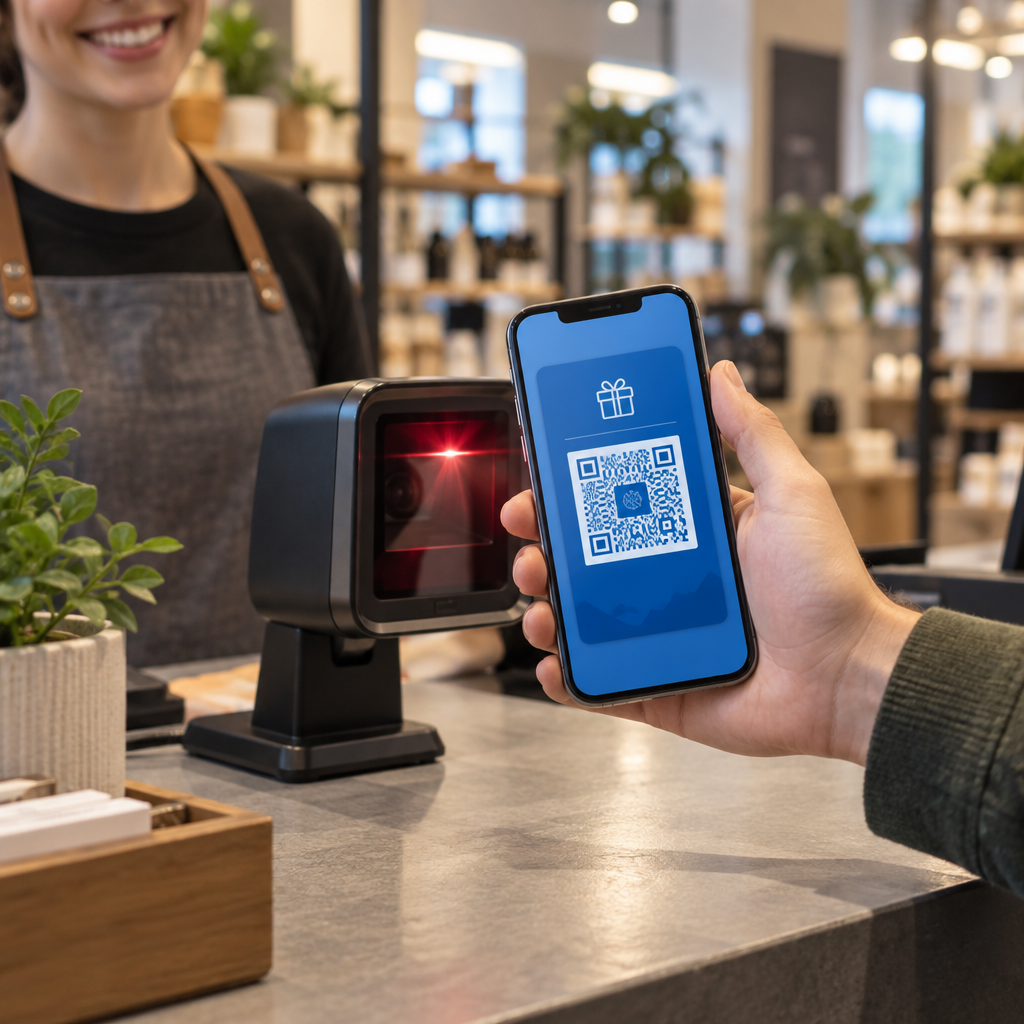
Displaying a QR code on a backlit mobile screen presents optical challenges that do not exist on printed paper. Phone screens suffer from reflective glare, ambient sunlight interference, and variable user brightness settings. Adhering to proven geriausia praktika QR kodo skaitomumui ensures passes scan instantly at the counter or turnstile.
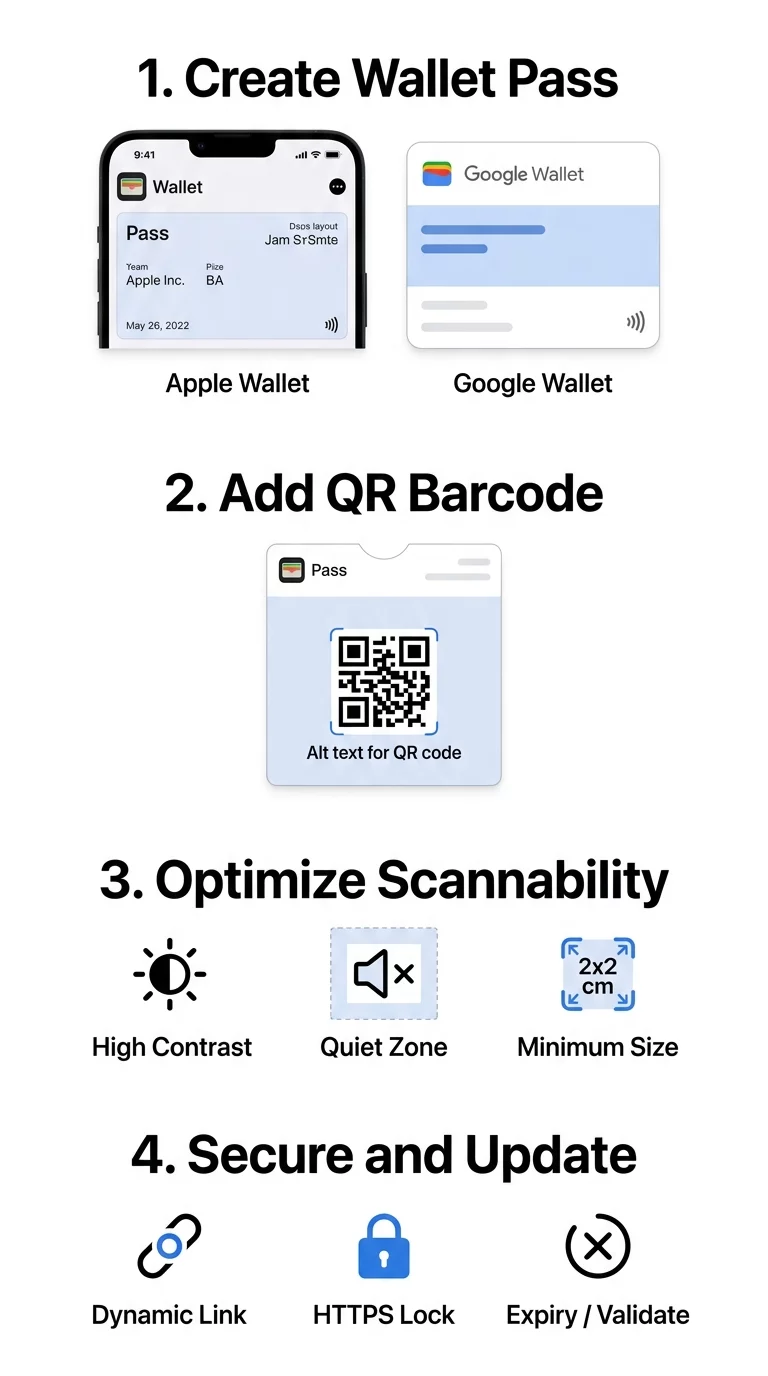
To guarantee high scan rates across diverse scanning hardware, follow these production standards:
- Maintain a minimum contrast ratio of 4:1 between the dark modules and the light pass background, ensuring the optical sensor can distinguish pattern edges under direct lighting.
- Size visual codes to render at least 0.8 x 0.8 inches (2 x 2 cm) on average phone displays, giving retail scanners adequate surface area to register data.
- Preserve a four-module quiet zone of unobstructed clear space around the perimeter of the barcode to prevent adjacent artwork from bleeding into the scan field.
- Utilize Level Q or Level H error correction when generating custom assets, preserving decodability even if a customer presents a scratched or smudged display.
- Rely on 2D optical imager scanners at checkout counters rather than legacy 1D laser scanners, as lasers struggle to read reflective glass screens.
Before wide distribution, verify your generated payloads using an online brūkšninių kodų skaitytuvas or a browser-based QR kodo skaitytuvas to confirm character encodings and payload accuracy across multiple operating systems.
Securing Digital Passes Against Duplication and Fraud
Static barcodes on mobile passes introduce fraud risks because users can easily screenshot and share their passes with unauthorized individuals. Implementing rigorous validation mechanisms is essential when deploying saugiems QR kodų renginių bilietams or managing high-value gift vouchers.
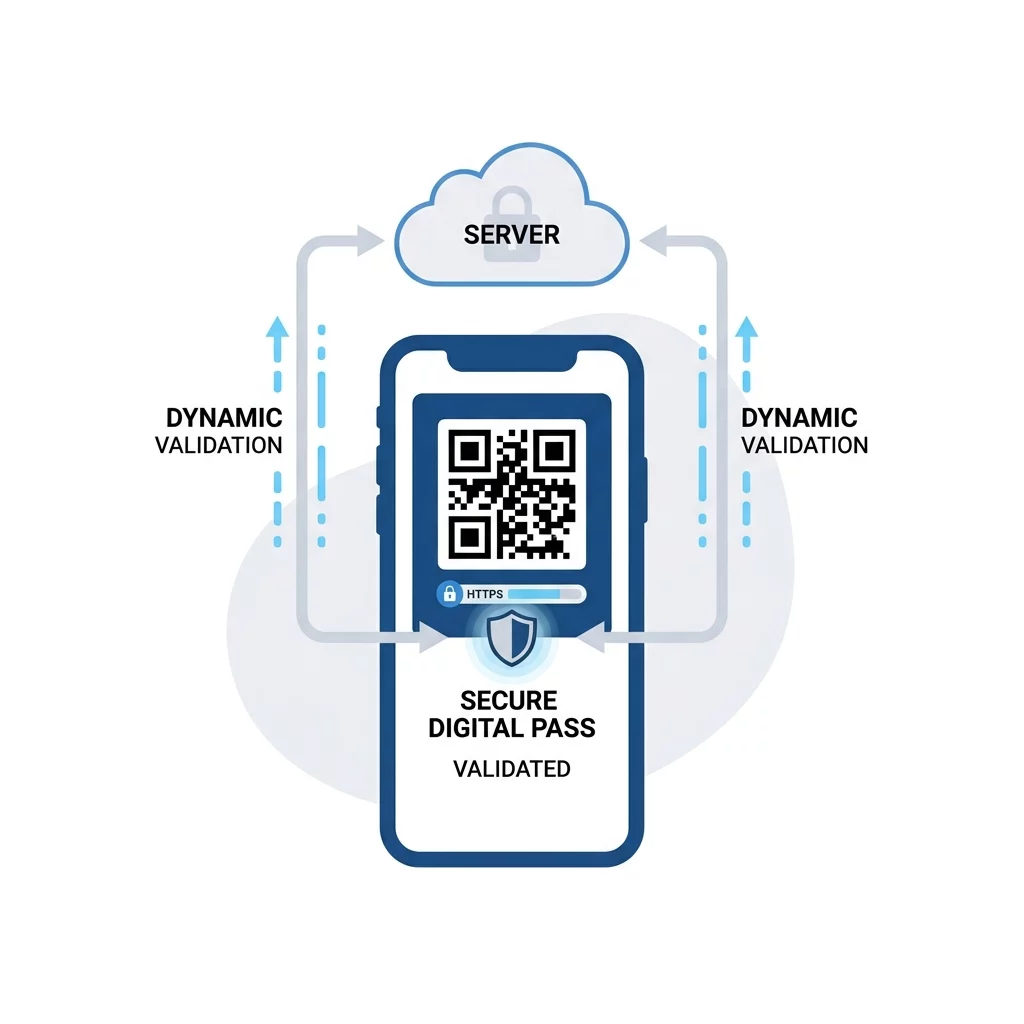
To protect your system against unauthorized redemptions, implement these layered security measures:
- Implement single-use tokenization where each pass barcode contains a unique, random string that your server marks as redeemed the moment it scans.
- Deploy rotating barcodes in Google Wallet using the `rotatingBarcode` object, which generates dynamic time-based one-time passwords (TOTP) that change every few seconds.
- Avoid using static fallback barcodes when configuring rotating passes, as static fallbacks undermine the security benefits of rotating tokens.
- Keep service-account keys and cryptographic pass-signing certificates restricted to secure, isolated server environments.
- Encrypt all secondary API communications over HTTPS to protect customer identification and loyalty data during transmission.
Launching and Validating Your Mobile Wallet QR Codes
Creating a frictionless mobile pass program requires careful coordination between visual layout, API payloads, and hardware compatibility. By formatting clean JSON structures, maintaining strict contrast standards, and securing your backend validation systems, you eliminate terminal failures and deliver a professional user experience.
Start prototyping your campaign by building and testing scannable assets with a professional QR kodo generatorių. Once your design passes optical testing, connect your payloads to digital wallet APIs to provide seamless, modern access for every customer.
Dažniausiai užduodami klausimai
The QR code format is the most reliable option for both platforms. It offers universal recognition across optical retail scanners and smartphone cameras, handles dense data payloads efficiently, and provides error correction that compensates for screen glare and minor glass scratches.
Yes. Apple Wallet allows you to push updated pass packages using your web service and Apple Push Notification service. Google Wallet allows real-time updates to pass objects via REST API calls, letting you modify encoded values or point balances without issuing a new pass.
Yes. Distributing official Apple Wallet passes requires an Apple Developer Program account to generate cryptographic Pass Type ID signing certificates. Google Wallet requires a Google Wallet API Issuer account and a Google Cloud service account to authorize API calls and sign pass data.